> For the complete documentation index, see [llms.txt](https://help.defisaver.com/llms.txt). Markdown versions of documentation pages are available by appending `.md` to page URLs; this page is available as [Markdown](https://help.defisaver.com/features/trending-zaps/long-or-short-eth-btc.md).
# Long or Short ETH / BTC
On our Trending page, you'll find zaps that allow you to open a long or short ETH or BTC position in a single transaction.
{% hint style="info" %}
*Longing an asset on DeFi Saver will:*
{% endhint %}
* Supply the asset as collateral
* Borrow a stablecoin as debt
* Swap the debt into more of the collateral
* Supply the added collateral
* Repeat the process of borrowing and supplying until the desired leverage amount is reached
{% hint style="info" %}
*Shorting an asset on DeFi Saver will:*
{% endhint %}
* Supply a stablecoin as collateral
* Borrow the desired asset as debt
* Swap the debt asset into a stablecoin
* Supply the stablecoin as collateral and borrow more debt
* Repeat the process of borrowing and supplying unitl the desired leverage amount is reached
So, let's take a look at how you can get this done in a few clicks using our zap:
Show me how:
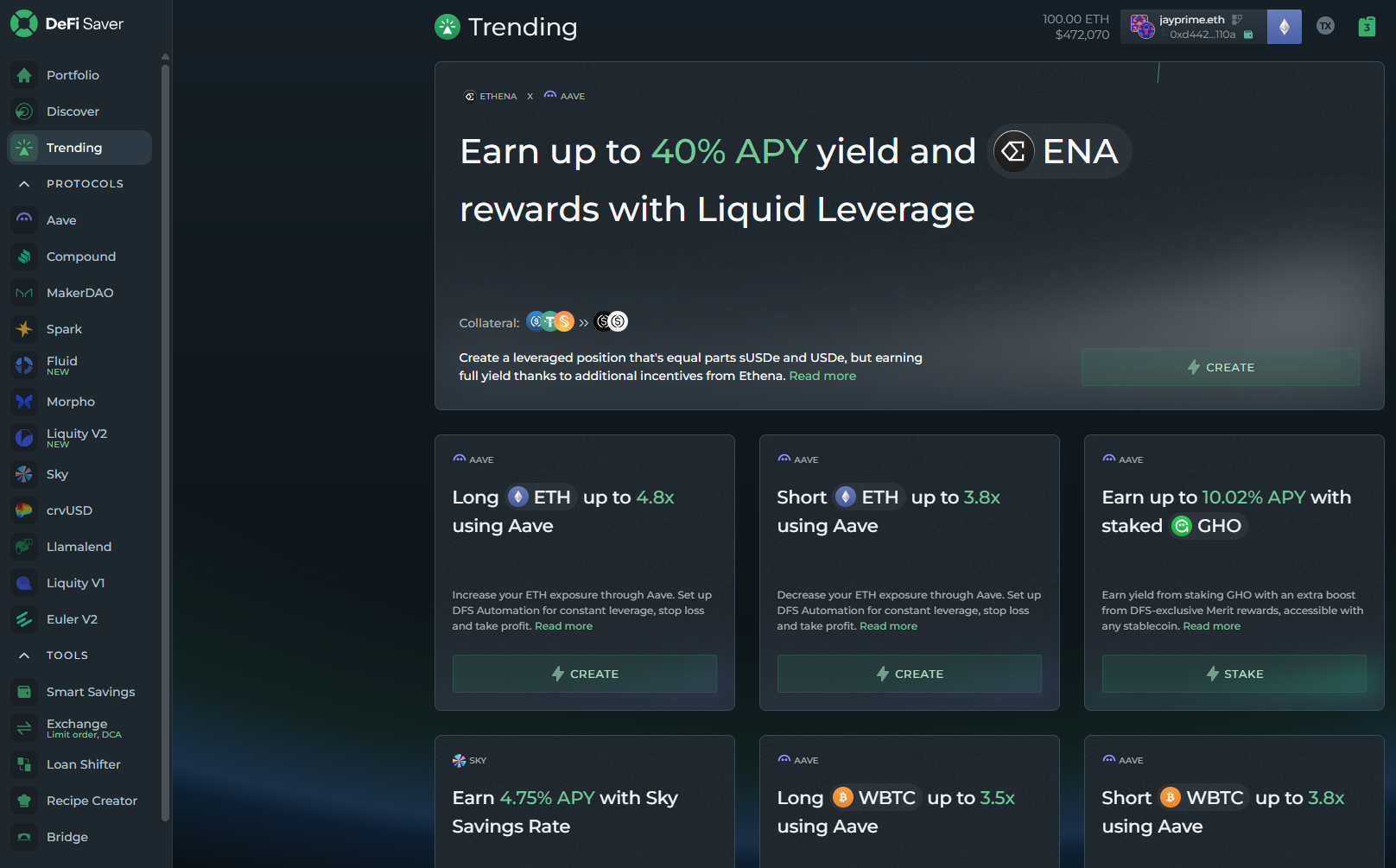
The first step would be to navigate to our Trending page:
From there, you'll find the following zaps (cards):
* Long ETH
* Long BTC
* Short ETH
* Short BTC
Clicking on any of the zaps will open a pop-up window:
For longing ETH or BTC, the pop-up window will provide you with the option to:
* Choose which asset you want to start with. This means that you can input an asset that's not ETH/BTC and the zap will swap it to either ETH or BTC
* Input the starting amount of collateral
* Set the leverage amount
* Select the debt asset
* [(If minimum debt requirement is met)](https://help.defisaver.com/features/automation/requirements-for-using-automation) - Toggle auto-boost liquidation protection
* Set the slippage limit
On top of this, you'll also see a preview of your position before executing the zap.
If everything checks out, simply click "Create".
From there, you'll be able to view and access your Aave position from the Portfolio page, or by visiting the Aave dashboard on DeFi Saver.
This will result in you having an open leveraged position on DeFi Saver, meaning you'll have access to a plethora of tools such as:
* [Boost and Repay](https://help.defisaver.com/general/what-is-defi-saver/boost-and-repay)
* [Automations](https://help.defisaver.com/features/automation)
* [Collateral/Debt switch](https://help.defisaver.com/features/loan-shifter)
* ...and many more
{% hint style="info" %}
Since your position will be on a Safe smart wallet, [you'll be able to view your position and assets on other apps by connecting your Safe to them.](https://help.defisaver.com/general/smart-wallets/connecting-your-safe-wallet-to-third-party-apps)
{% endhint %}