> For the complete documentation index, see [llms.txt](https://help.defisaver.com/llms.txt). Markdown versions of documentation pages are available by appending `.md` to page URLs; this page is available as [Markdown](https://help.defisaver.com/instadapp/dashboard-comparison.md).
# Dashboard Comparison
DeFi Saver and Instadapp PRO have similar functionalities, however the UX and toolset do differ a bit between the two apps. In this article, we'll compare the two dashboards so that Instadapp PRO users can easily get the hang of DeFi Saver.
As our first step, let's look at the Portfolio/Dashboard pages:
Compare Portfolio pages:
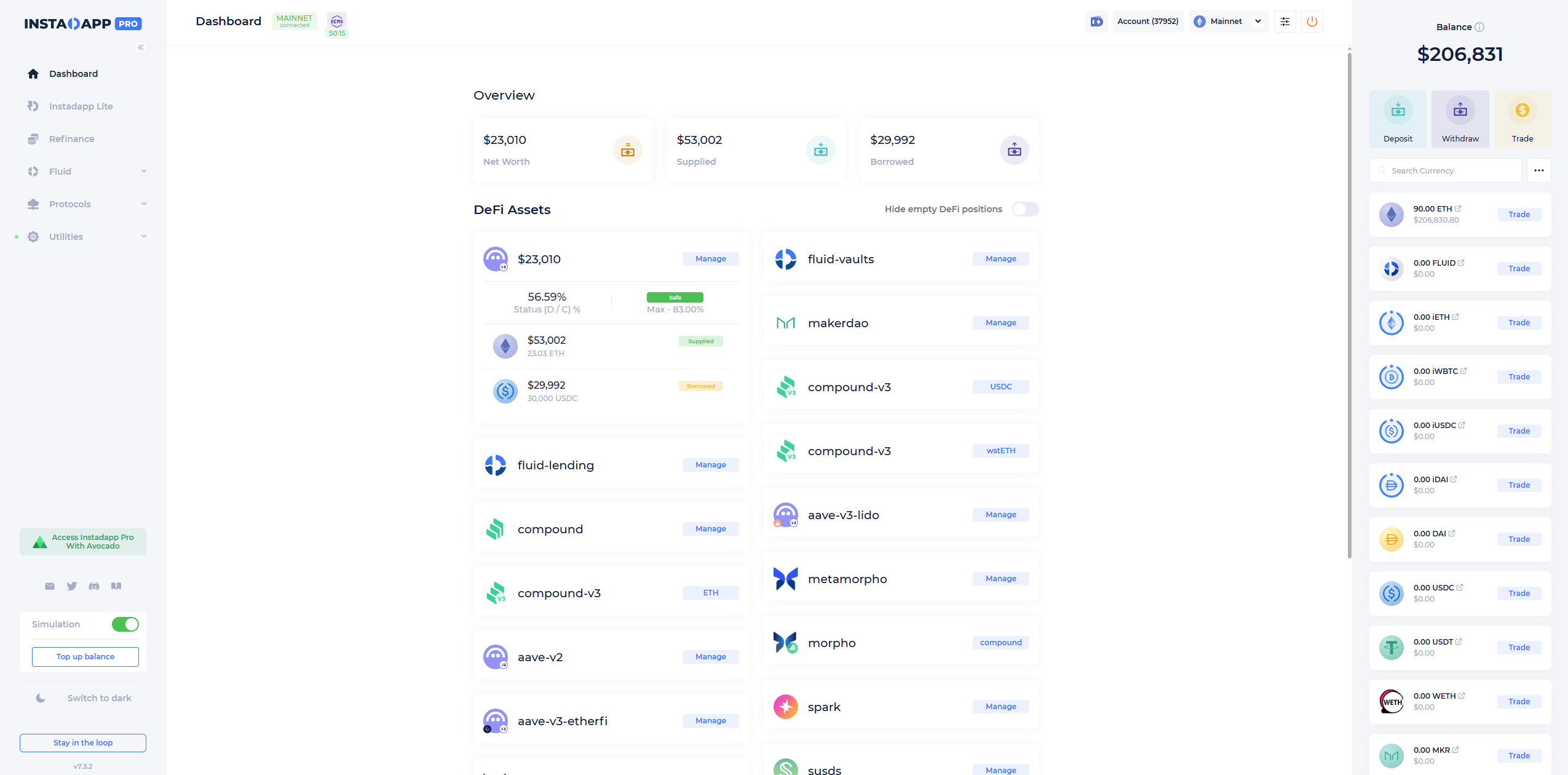
First, let's have a look at Instadapp PRO's Portfolio (Dashboard) page:
And compare it to DeFi Saver's Portfolio page:
Upon first inspection, the layouts feel similar. On the right-hand side, you have your token holdings, with some key differences between the two apps:
* Instadapp shows the balance of your DSA (DeFi Smart Account), and not your main wallet. This is why you have the option to "Deposit" or "Withdraw" from the DSA on Instadapp. On DeFi Saver, your main wallet holdings will show up, as well as the funds on your smart wallet.
* On Instadapp, you also have the option to swap tokens from this section, while DeFi Saver has a dedicated "Exchange" tool that you need to go to
* Instadapp will show empty token balances, while DeFi Saver only shows tokens that you currently have in your portfolio
* You can import custom tokens by inputting their address on Instadapp, while DeFi Saver will only show holdings of tokens that are supported by our app
* If you have any claimables available - they will show up under the Tokens section on DeFi Saver, while they have to be claimed directly through the protocol dashboard on Instadapp
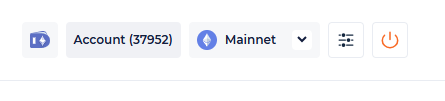
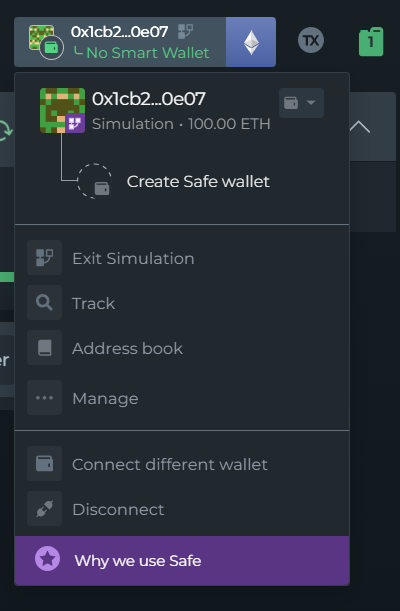
In the upper-right corner of both UXs, you'll find the network switching button, as well as the wallet menu:
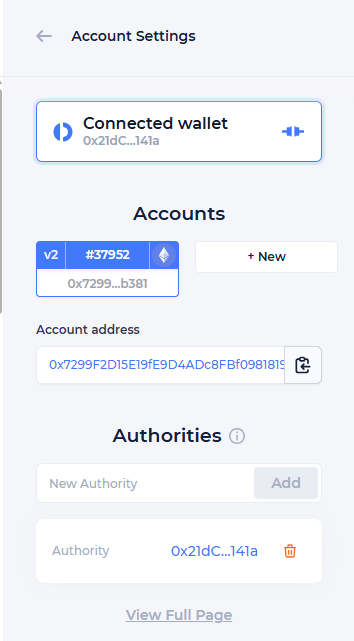
Both options are self-explanatory - You click on the network icon to open a dropdown where you choose your preferred network. On the other hand, clicking your wallet (account) will give you a dropdown menu on DeFi Saver, while it opens a menu on the right-hand side on Instadapp PRO:
{% hint style="info" %}
*DeFi Saver's "Track" option lets you input any wallet in order to view its token holdings and positions.*
{% endhint %}
Continuing onto the positions themselves - You'll notice that Instadapp presents all the available protocols within the main dashboard, with the option to hide those that you don't have a position on, with the option of viewing all available protocols by clicking "Protocols" in the left-hand sidebar.
When it comes to DeFi Saver, all the protocols are listed on the left-hand sidebar, while the main dashboard will only show you currently open positions. These include both borrow positions, or if you've supplied to a vault.
Finally, you'll see some basic but important metrics for your position(s) on both apps, and by clicking on the position - you'll be taken to the manage tab.
With that introduction, we can now compare how position management works on both apps:
Compare Position dashboards:
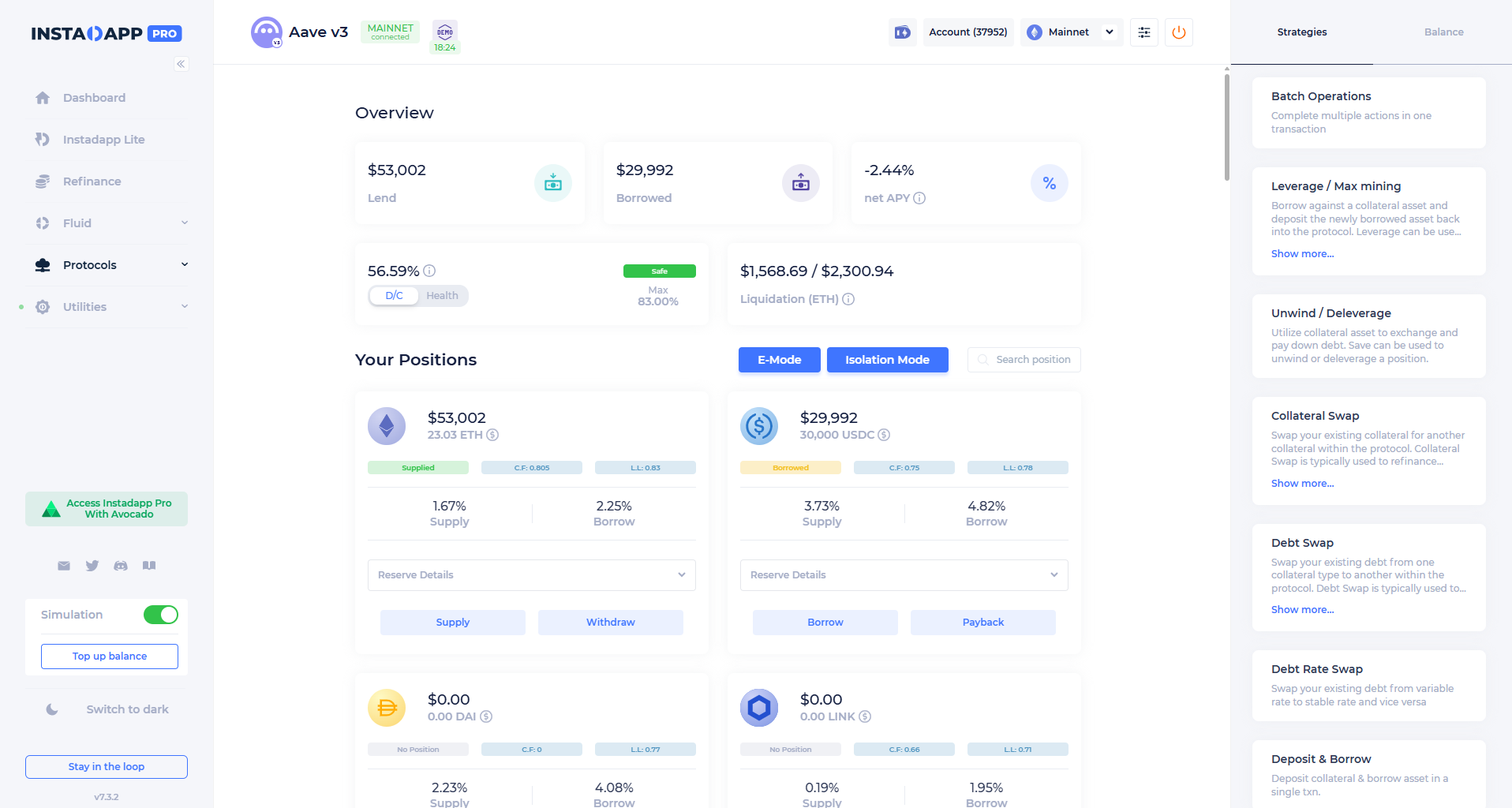
These dashboards differ considerably between the two apps:
And now we take a look at DeFI Saver's:
The differences are pretty obvious. Instadapp presents all available markets within the main area of the dashboard, regardless of whether or not you have a supplied/borrowed asset in said market.
On DeFi Saver, your position is shown in the upper part of the dashboard with a clear indicator of how much is supplied, and how much is borrowed. By clicking on the amounts, you can also see the specific asset(s) that have been supplied.
The remaining markets are communicated and shown in the "Market" section, which is underneath the main dashboard and management tools.
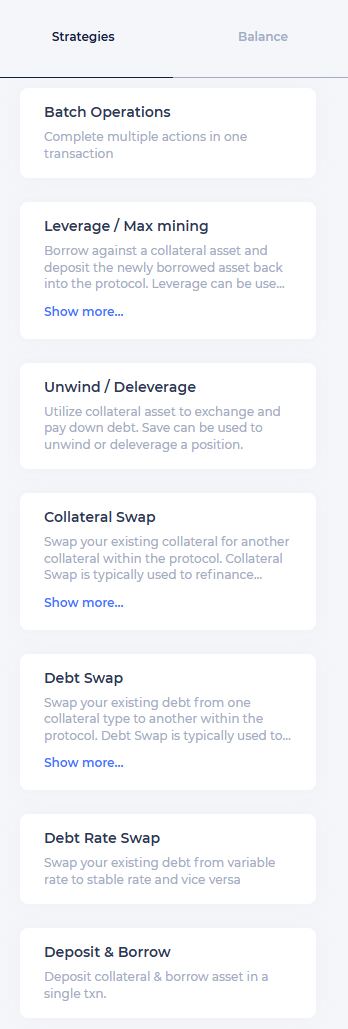
On the right-hand side of the Instadapp dashboard, we can find the advanced position management tools:
Simple "Supply" or "Borrow" operations are located within each asset's market.
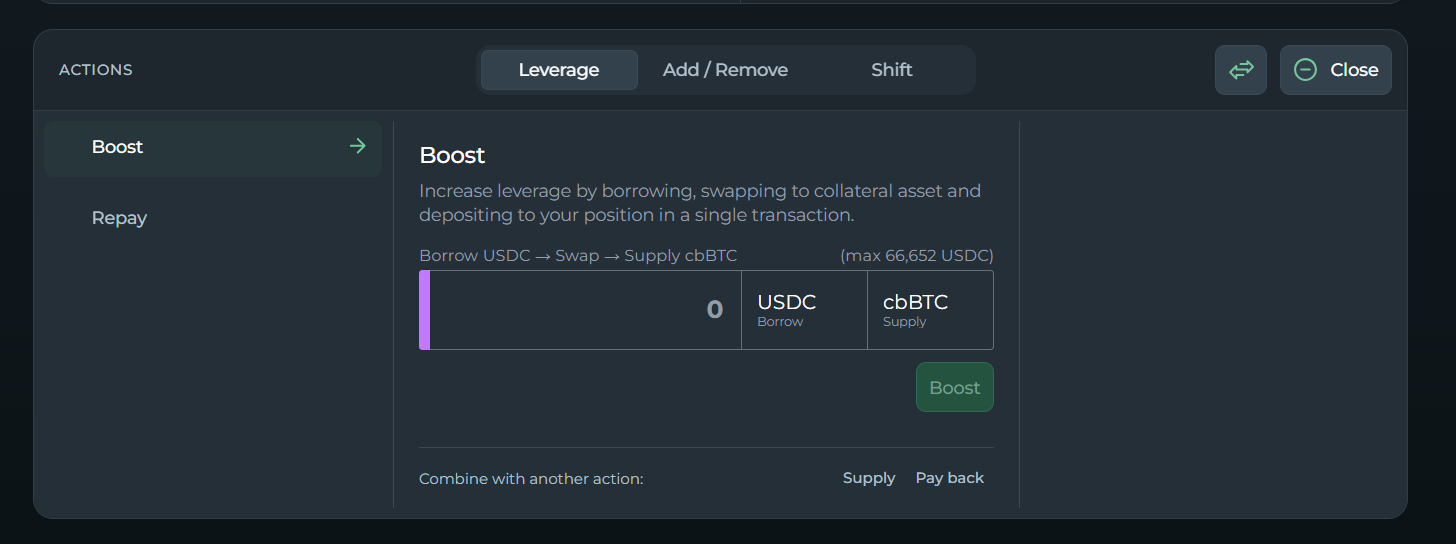
On DeFI Saver, any and all position management tools are located underneath the main part of the dashboard that contains all of your position's metrics:
We go into all of these features in detail in the "Feature Comparison" article, but let's also cover them quickly here:
* [Boost](https://help.defisaver.com/features/boost-and-repay) is a tool that works like "Leverage" on Instadapp. Essentially, it uses a flash loan to increase your leverage to the collateral asset by incurring more debt. In turn, it also makes your position riskier.
* [Repay ](https://help.defisaver.com/features/boost-and-repay)decreases your leverage by using a flash loan in order to free up your collateral and swap it to the debt asset - thus repaying the flash loan and also making your position safer.
On the "Add/Remove" tab, you'll have:
* Supply
* Withdraw
* Borrow
* Pay Back
Additionally, you're able to chain these actions together in order to combine them into a single transaction. These options are bundled together on Instadapp under "Payback and Withdraw" or "Deposit and Borrow"
Moving onto the "Shift" tab, we have:
* [Collateral Switch](https://help.defisaver.com/features/collateral-and-debt-switch) - This tool lets you switch your collateral asset to a different one
* [Debt Switch](https://help.defisaver.com/features/collateral-and-debt-switch) - This tool lets you switch your debt asset to a different one
* [Position Flip](https://help.defisaver.com/features/collateral-and-debt-switch/position-flip) - This tool "flips" your collateral and debt asset, where your collateral asset becomes debt, and the debt asset becomes collateral
* [Shifter](https://help.defisaver.com/features/loan-shifter) - This tool lets you move your position to a new protocol, just like the "Refinance" tool on Instadapp.
Finally, let us also have a look at the metrics you'll find on the dashboards:
* On Instadapp, you'll find the D/C (Debt/Collateral ratio) and the Health Factor as the two main risk metrics:
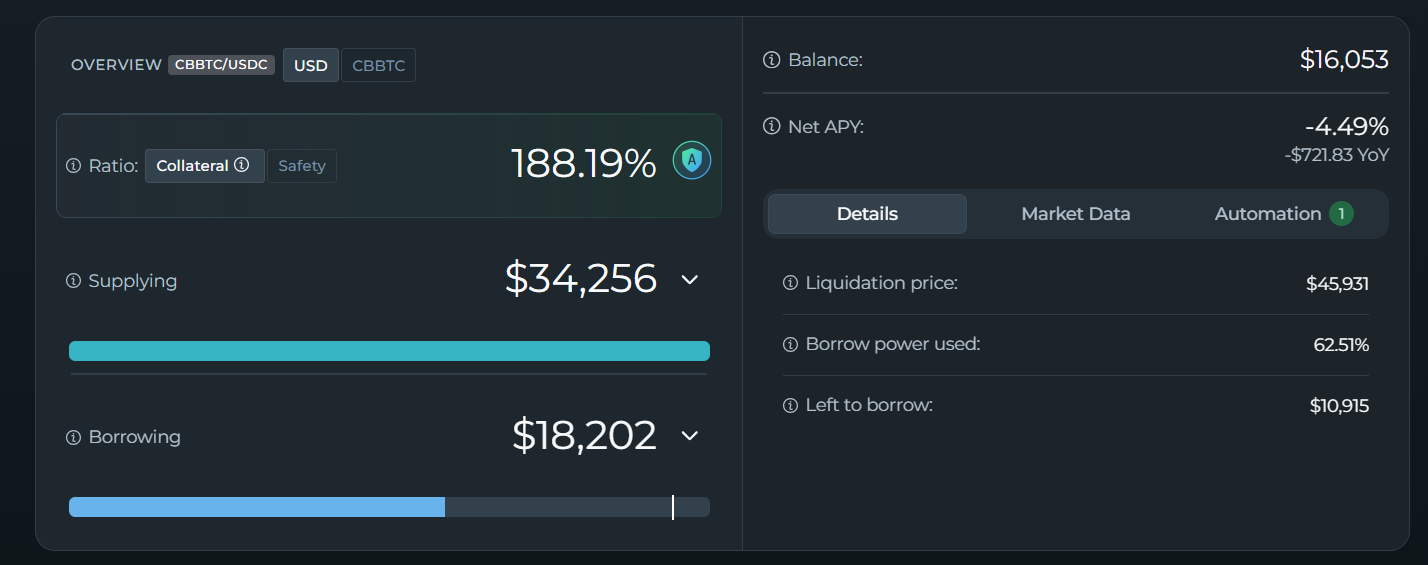
* On DeFi Saver, these include the Collateral and Safety Ratio, as well as the Health Factor (when it's available within the protocol):
Both apps show the Liquidation price, as well as the Net APY of your current position.
Two more options you'll see in this section on DeFi Saver are:
* Migrate - This tool lets you move your position either from an EOA to a Safe Smart Wallet, or from one Smart Wallet to a different/new Safe Smart Wallet.
* [Close](https://help.defisaver.com/features/leveraged-create-and-close) - Which lets you use collateral from your position to fully clear the debt, and withdraw all remaining collateral to your wallet.
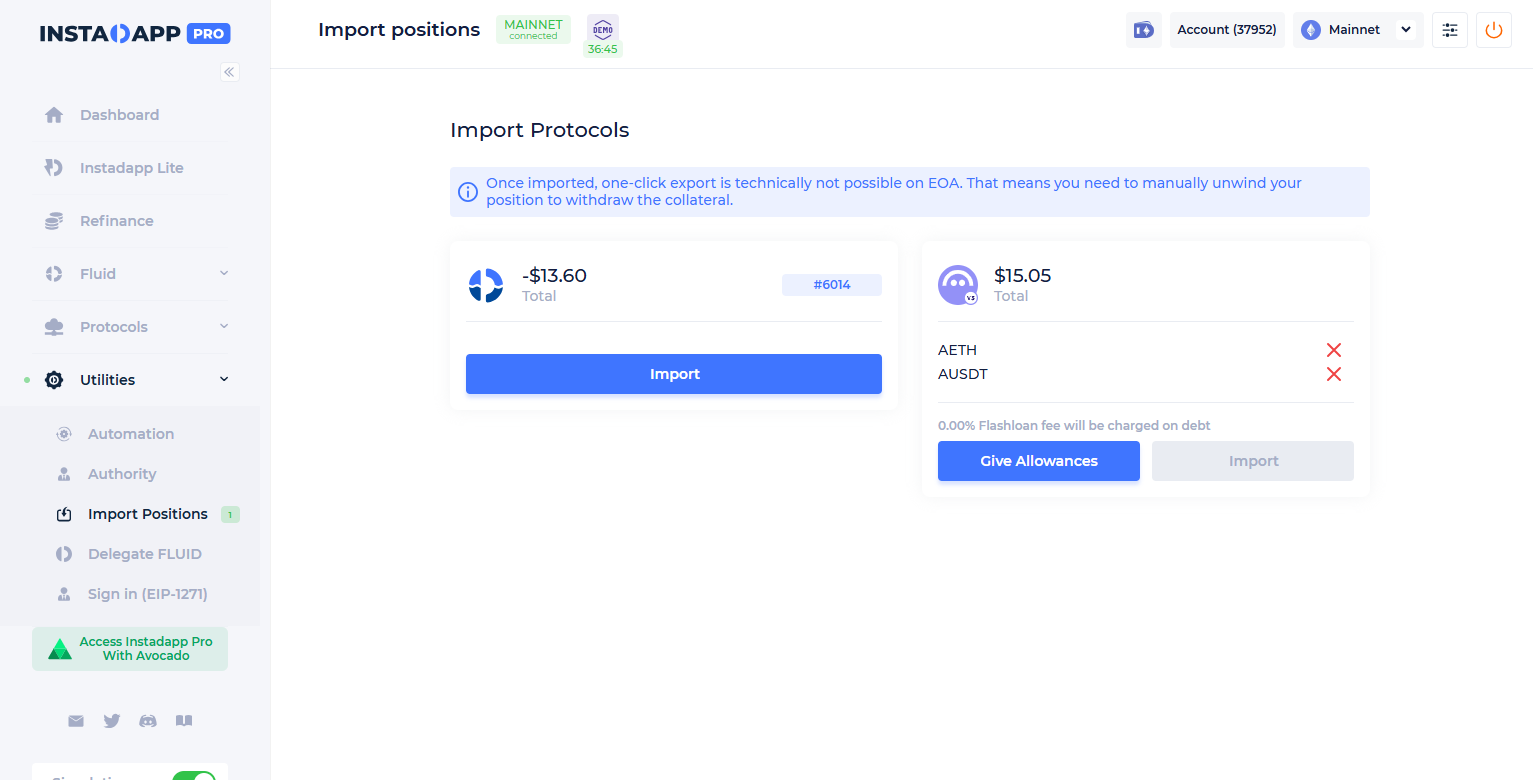
Similarly to Migrate - Instadapp has the "Import" option, which lets you migrate currently unsupported positions to a DSA, which would let you manage it through Instadapp PRO:
One of DeFi Saver's signature features is our suite of Automation options, and while Instadapp PRO had some automation options available - they are currently being deprecated.
To learn all about DeFi Saver's Automations, you can refer to the [Automation section of our Knowledge Base.](https://help.defisaver.com/features/automation)
Moving on, both DeFi Saver and Instadapp PRO provide users with the option of supplying to protocol-specific vaults:
Compare Staking options:
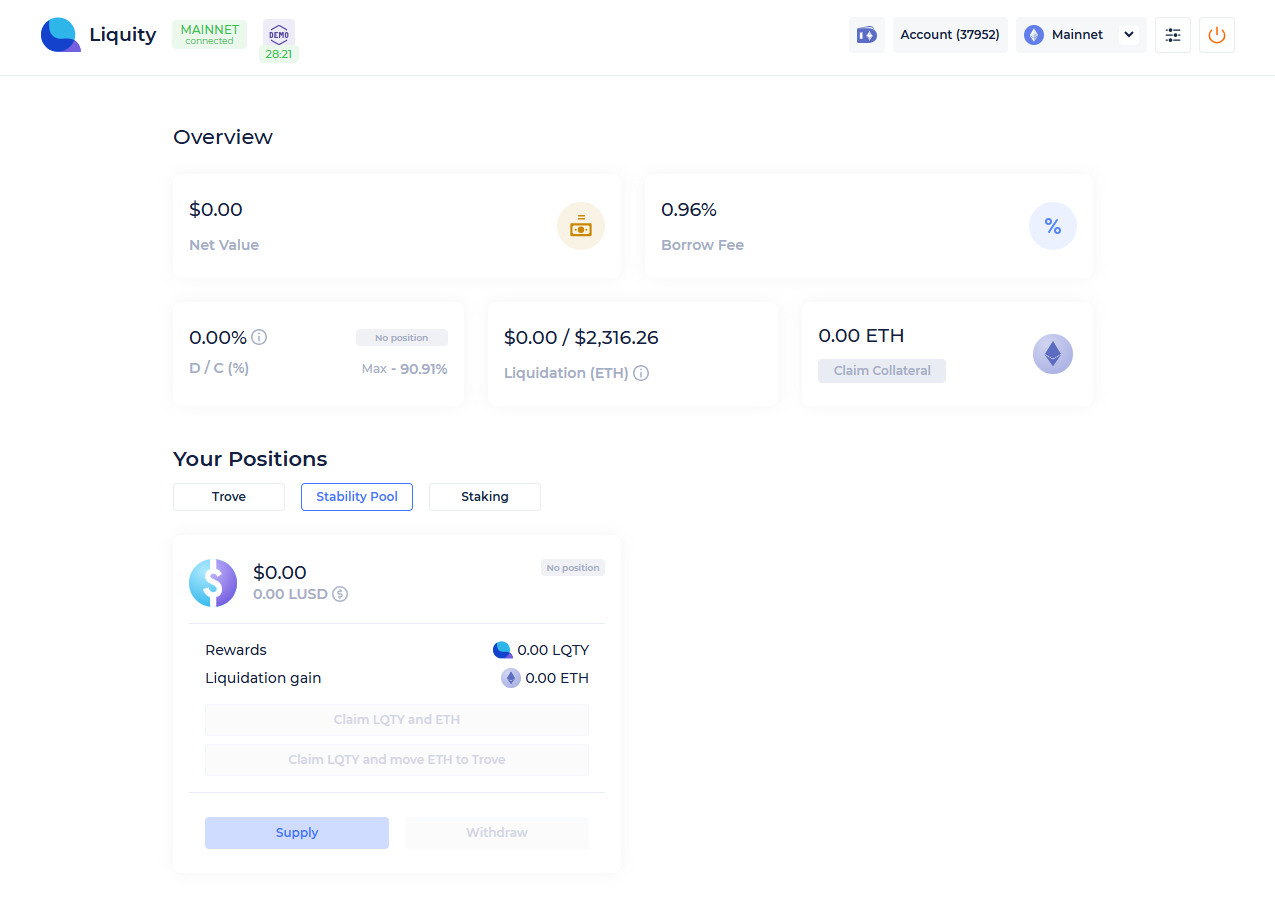
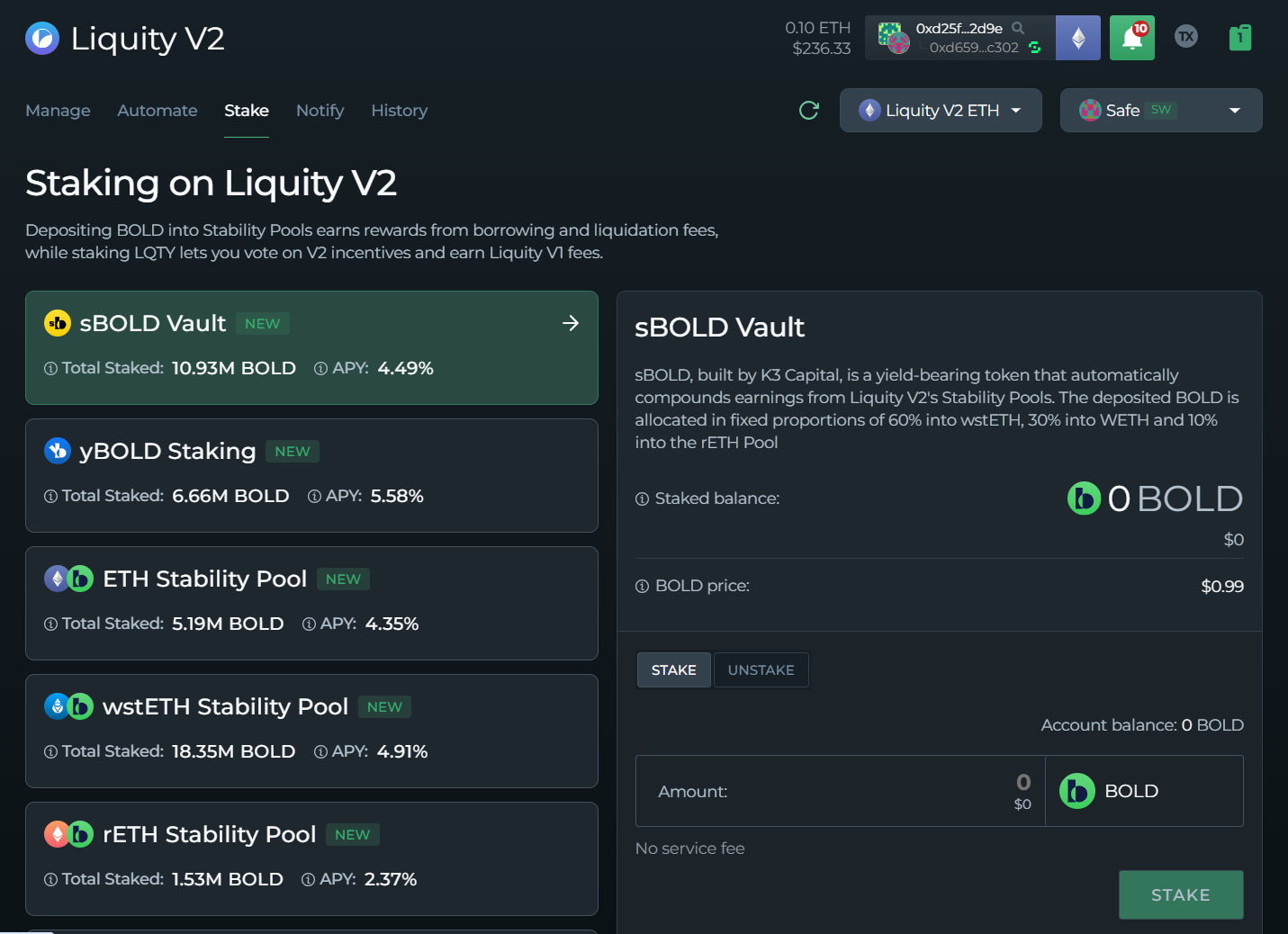
The first thing we'd mention is that the protocol-specific staking options do not match across both apps. In this example, we'll look at Liquity V1 on Instadapp PRO, and Liquity V2 on DeFi Saver:
On Instadapp PRO, you'll find the "Stability Pool" option as a tab within the Liquity V1 dashboard.
On DeFi Saver, you'll need to click on the dedicated "Stake" tab to access all of the options availabie for Liquity V2.
From here - Both apps function similarly. You can Stake/Supply to the specific Stability Pool/Vault, after which you'll be able to withdraw/unstake from them.
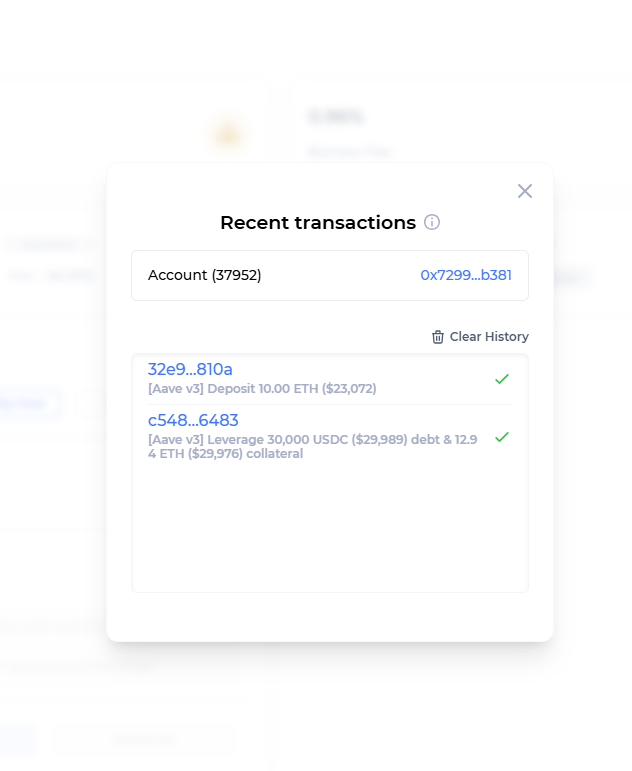
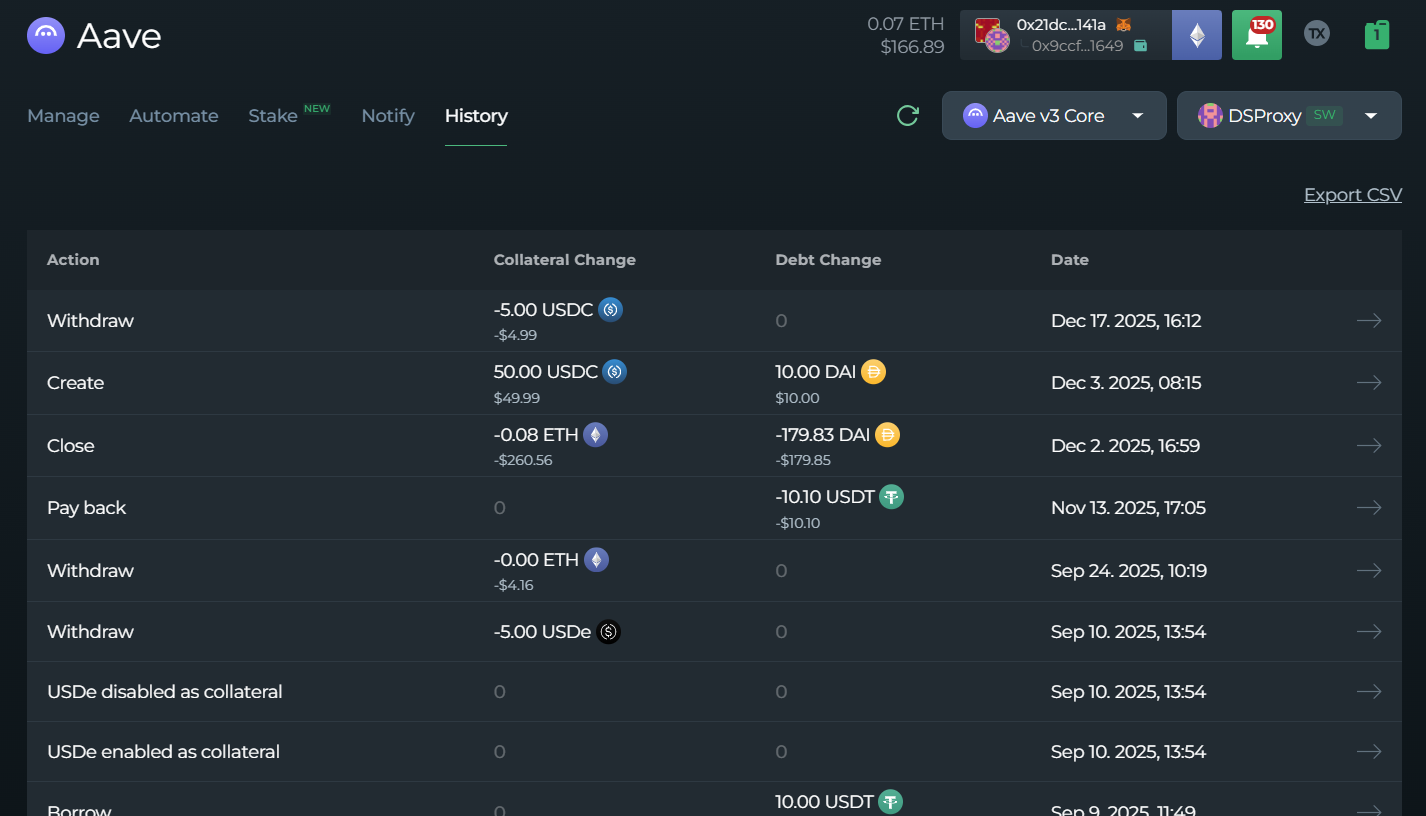
Both apps let you view the History of your position:
Compare History options:
On Instadapp PRO, you have the "Tx receipt" option, which will provide you with a list of all transactions you've performed:
On DeFi Saver, you'd click on the "History" tab within the protocol's dashboard:
{% hint style="info" %}
*Please note that the History tab is not available across every chain and protocol on DeFi Saver.*
{% endhint %}
We've covered the dashboard differences when you have an existing position, but let's now also compare how Summer and DeFi Saver differ in how positions are created:
Compare how positions are opened:
Let's use Maker as an example on both apps - where we want to create a leveraged position with ETH.
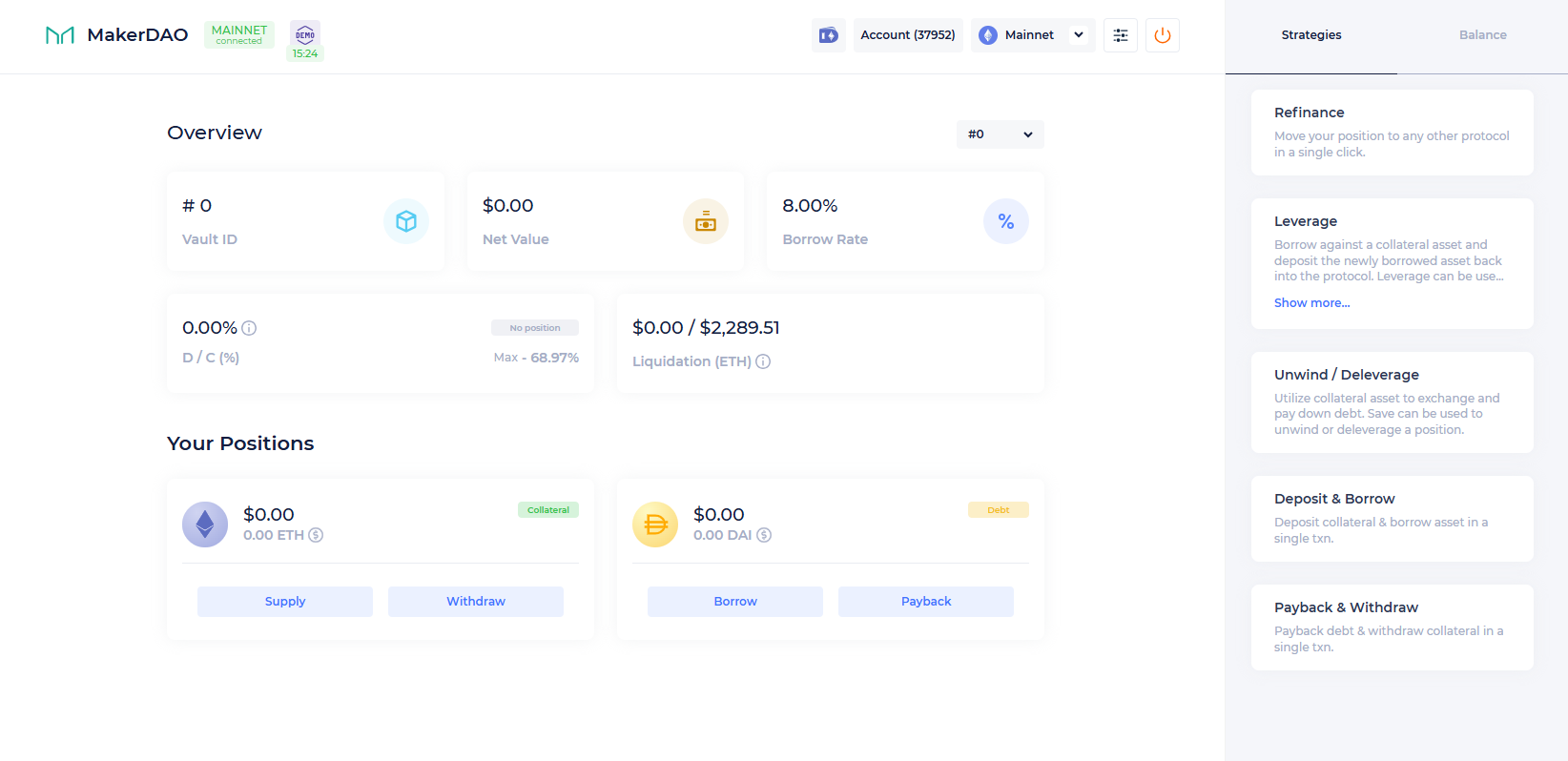
The first and logical step would be to open the Maker dashboard, after which we're met with the following:
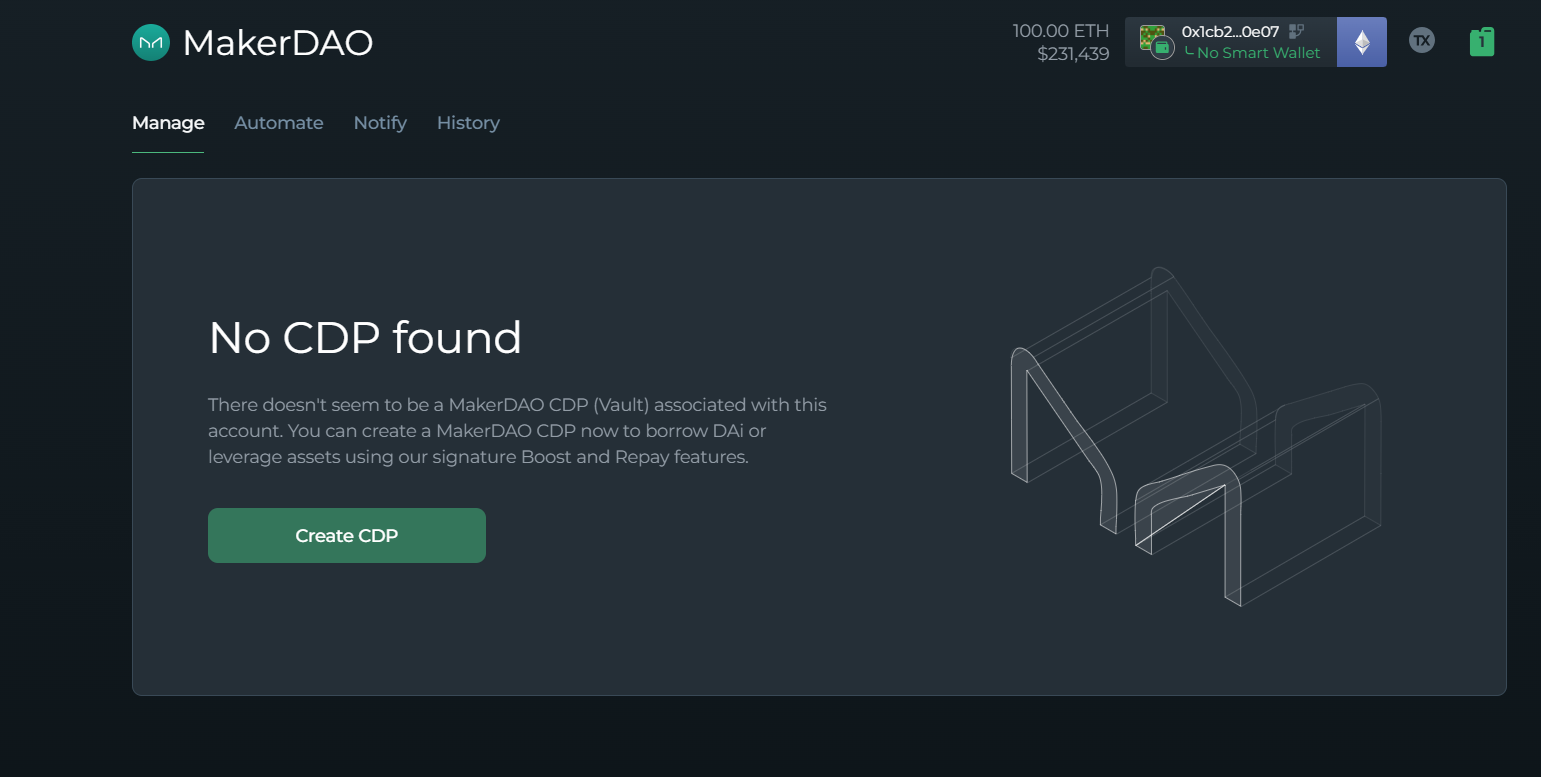
Instadapp meets us with an empty position, and DeFi Saver does the same - with a prompt to open a CDP:
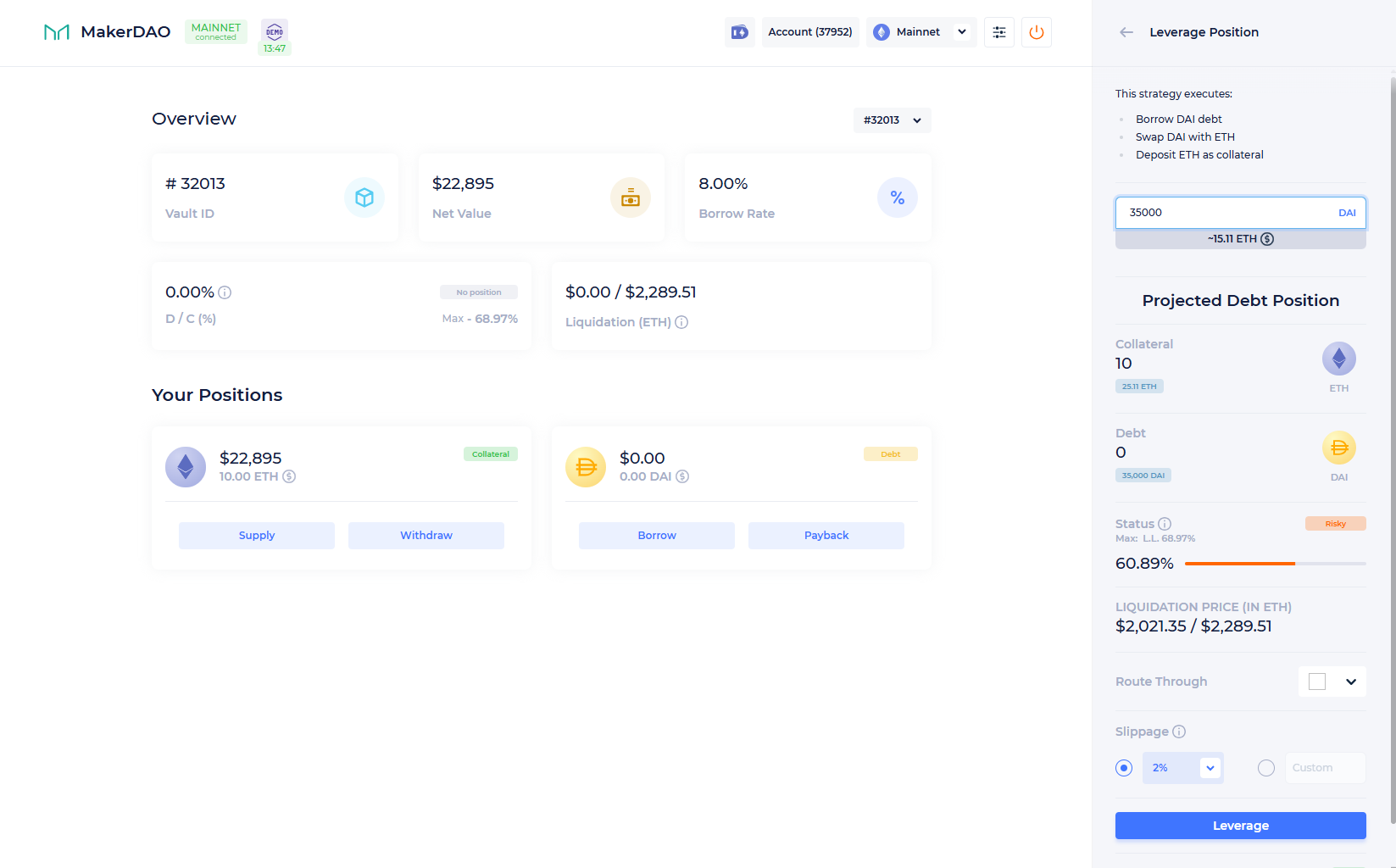
This is where the process differs between the apps. On Instadapp, our first step would be to supply the ETH collateral, after which we'd click on "Leverage" from the right-hand side - and then input the amount of DAI debt we'll be generating:
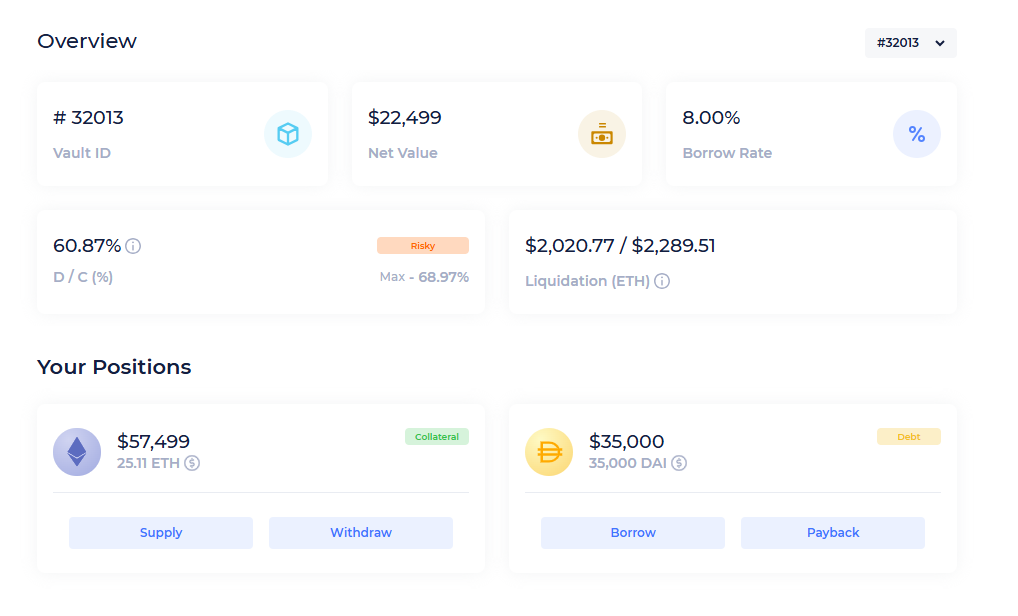
Beforehand, the UI will let us know how dangerous of a position we're entering - and we can also set the slippage as well as the swap route. We then click "Leverage", and we're done:
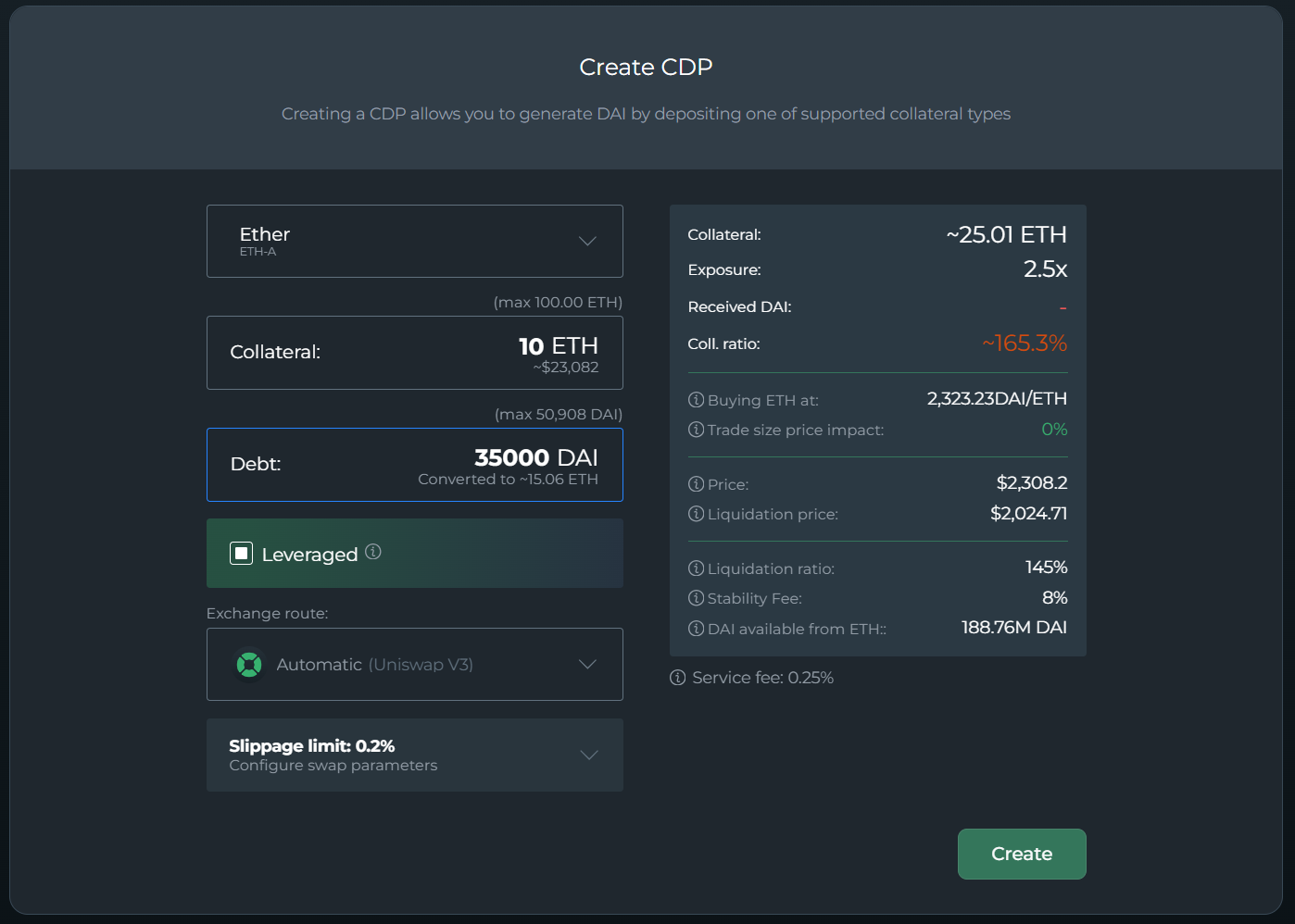
Moving onto DeFi Saver, we being the process by clicking the "Create CDP" button:
This will take us to the Create page, where we can either open a regular borrow position, or check the "Leveraged" checkbox. Once clicked, we can then input the amount of DAI debt we'd generate - and the panel on the right-hand side will show us how much ETH collateral we'd have after leveraging.
On top of that, we'll also see key metrics such as our position's Safety Ratio and Liquidation Price. Just like on Instadapp - we can also set our slippage limit.
If everything checks out - just click create, and your leveraged position will be taken care of in one transaction.
With that, we've covered the very basics of the two dashboards - including the Portfolio page and position management. In the following articles, you can also view feature and fee comparisons - as well as what features from Instadapp are not available on DeFi Saver, and vice-versa.
***
## Related articles:
* [Feature Comparison](https://help.defisaver.com/instadapp/feature-comparison)
* [Fee Comparison](https://help.defisaver.com/instadapp/fee-comparison)
* [Unsupported Features](https://help.defisaver.com/instadapp/unsupported-features)
* [DeFi Saver-Exclusive Features](https://help.defisaver.com/instadapp/defi-saver-exclusive-features)
.png?alt=media&token=4fcba515-0fb7-4870-b87a-aa5e61eb0f4b)

.png?alt=media&token=38d38601-eed6-4778-b47a-49dbfc5f9a49)