> For the complete documentation index, see [llms.txt](https://help.defisaver.com/llms.txt). Markdown versions of documentation pages are available by appending `.md` to page URLs; this page is available as [Markdown](https://help.defisaver.com/summer.fi/dashboard-comparison.md).
# Dashboard Comparison
Visually, DeFi Saver's dashboard does differ from Summer's - even though they're functionally similar. That's why in this article, we'll cover the DeFi Saver dashboard step-by-step and compare it to what you're used to on Summer.
Let's start from ground zero and look at the Portfolio page(s):
Compare Portfolio pages:
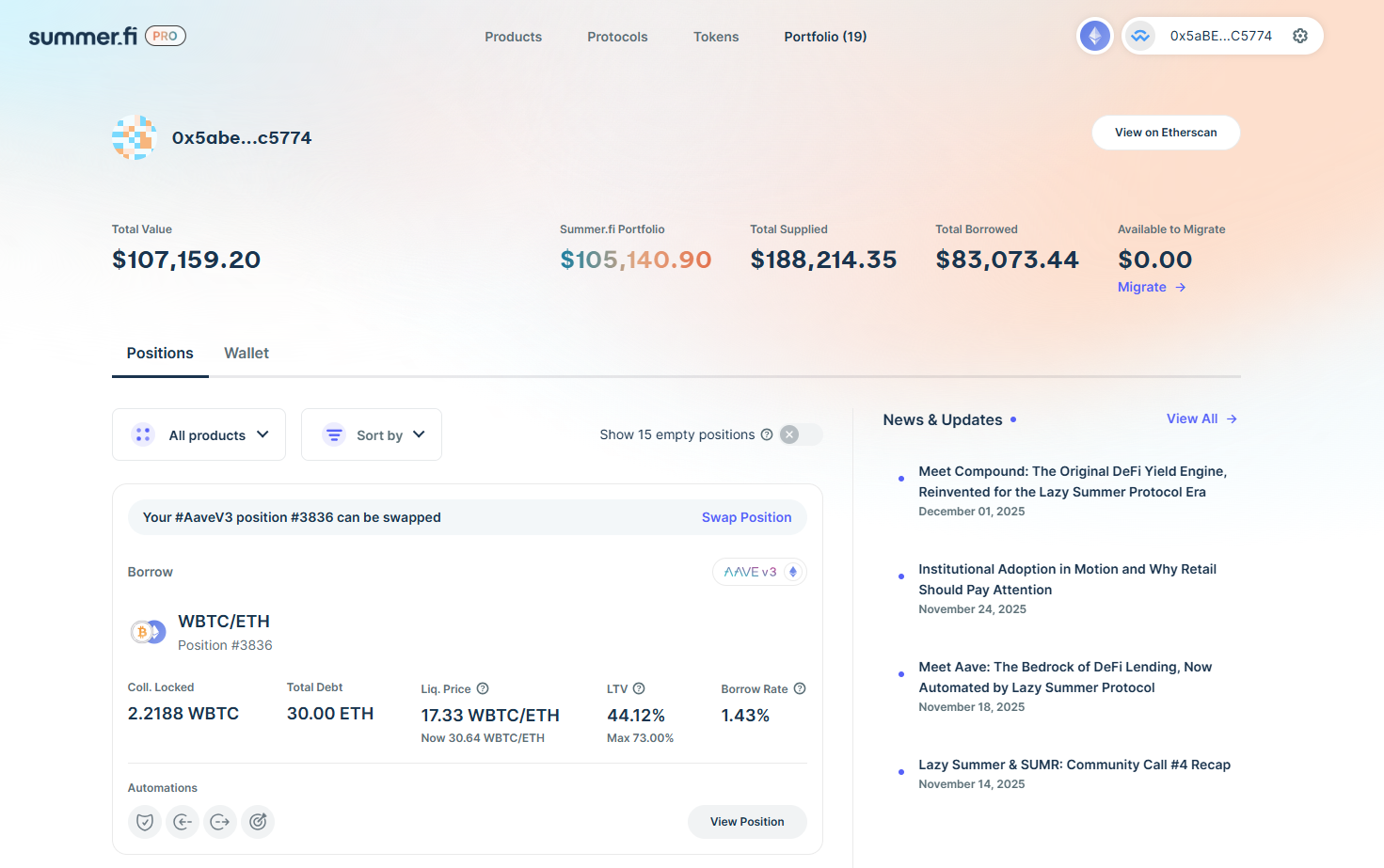
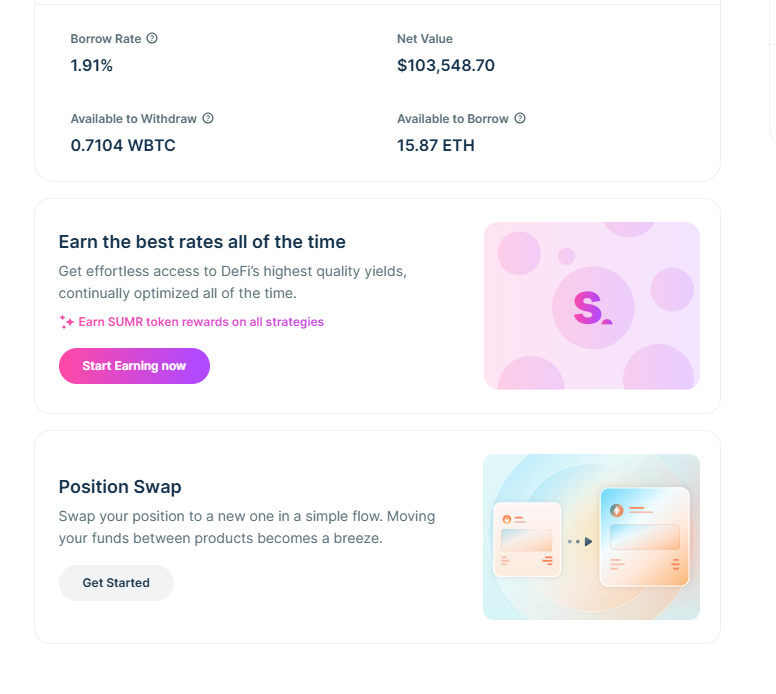
Let's first have a look at Summer.fi's Portfolio page that you're familiar with:
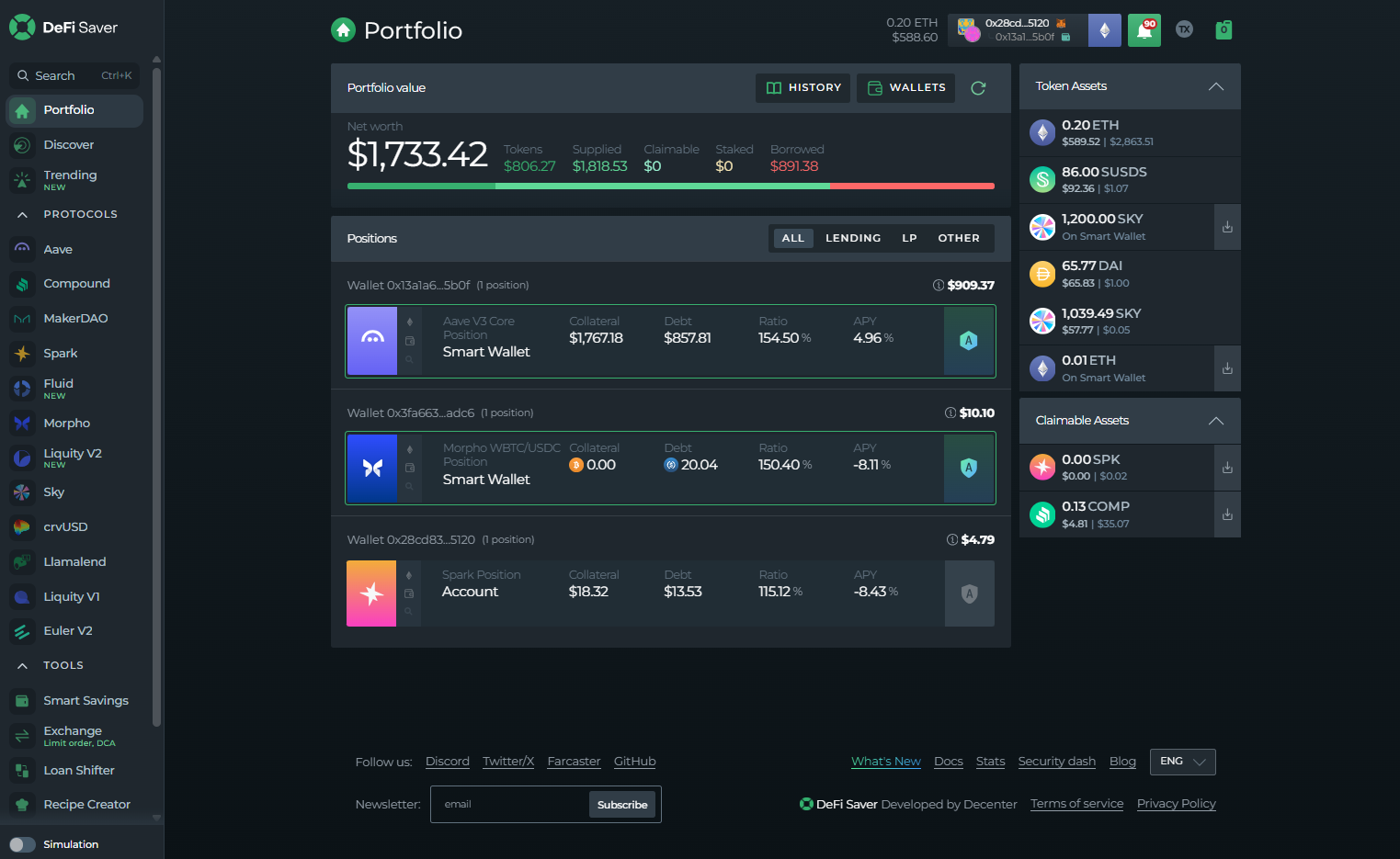
And compare it to DeFi Saver's Portfolio page:
The information you'll find on both Portfolio pages is similar - Both have your DeFi position that you can click to access, as well as your account's total value, supplied, and borrowed amounts.
On top of that, you'll see the most relevant information about your DeFi position - along with the protocol it's on, and whether or not it has an active automation on it.
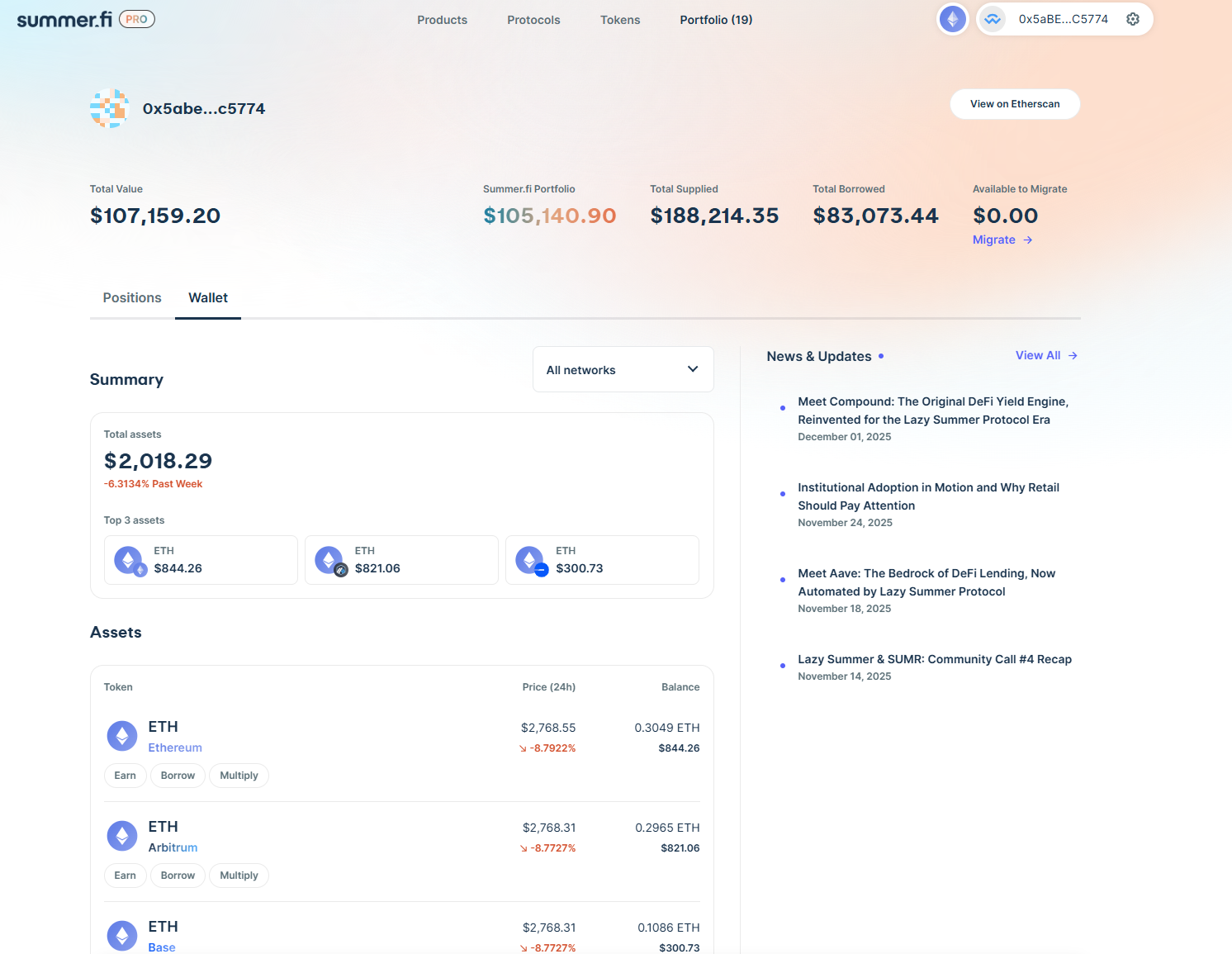
One of the differences is how Token assets are displayed. On Summer, you'll need to click on the "Wallet" tab - while all of your available tokens (including the claimables) are displayed on the right-hand side of the screen.
Two more differences to highlight here is that DeFi Saver's "Token" section will not show you all of your available tokens across all available networks (as is the case with Summer).
Instead, you'll need to use the network selector (top right corner of the screen), change the network you're currently on, and then view your token holdings on it.
Additionally, there are no "Earn/Borrow/Multiply" buttons under the token assets on DeFi Saver, which is due to the difference in how positions are opened on the two platforms. We'll dive deeper into this a bit later in the guide.
From here, you're most likely to open your DeFi position to see what our dashboard looks like - so let's compare the two:
Compare Position dashboards:
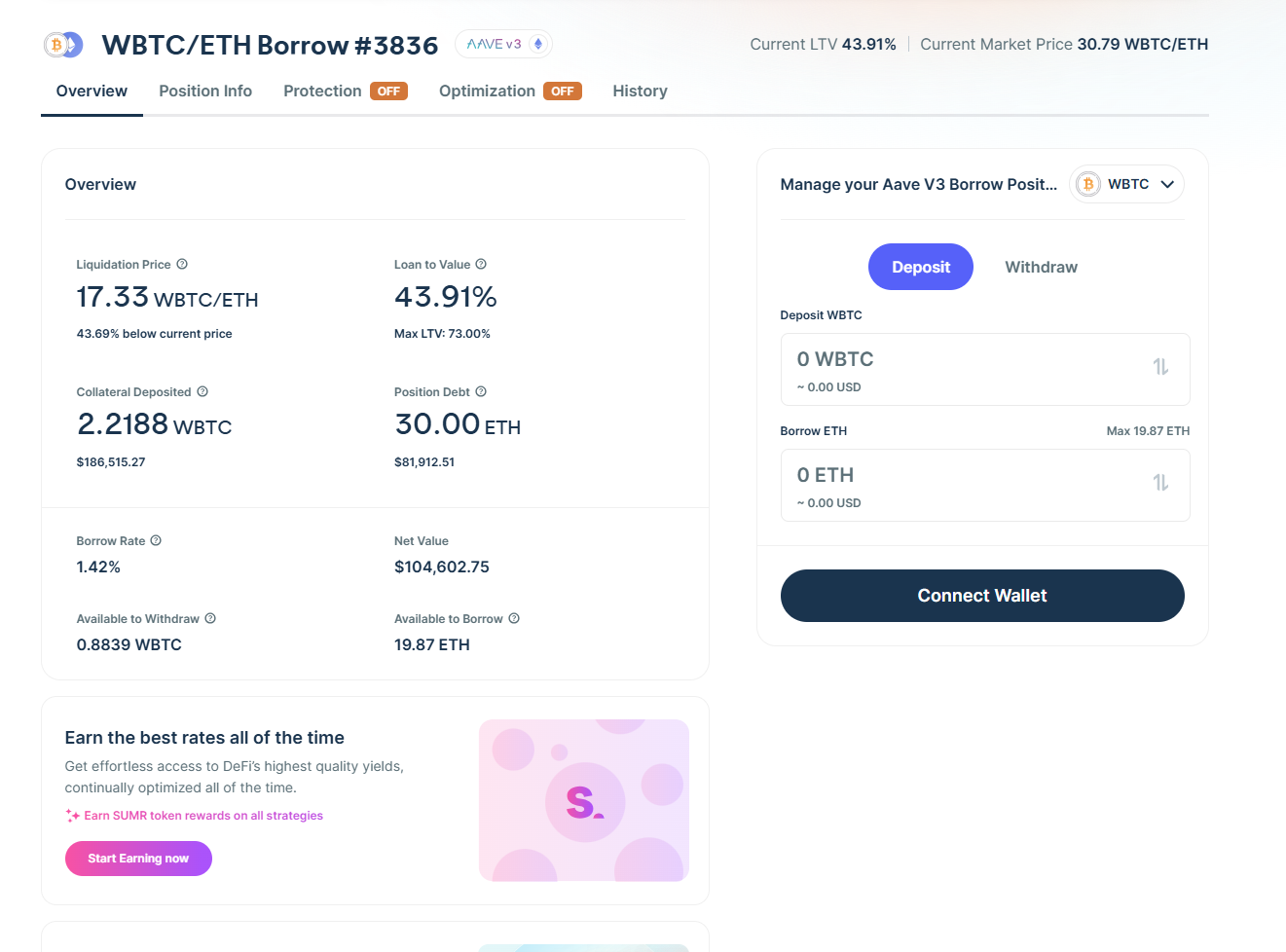
We'll look at Summer's first:
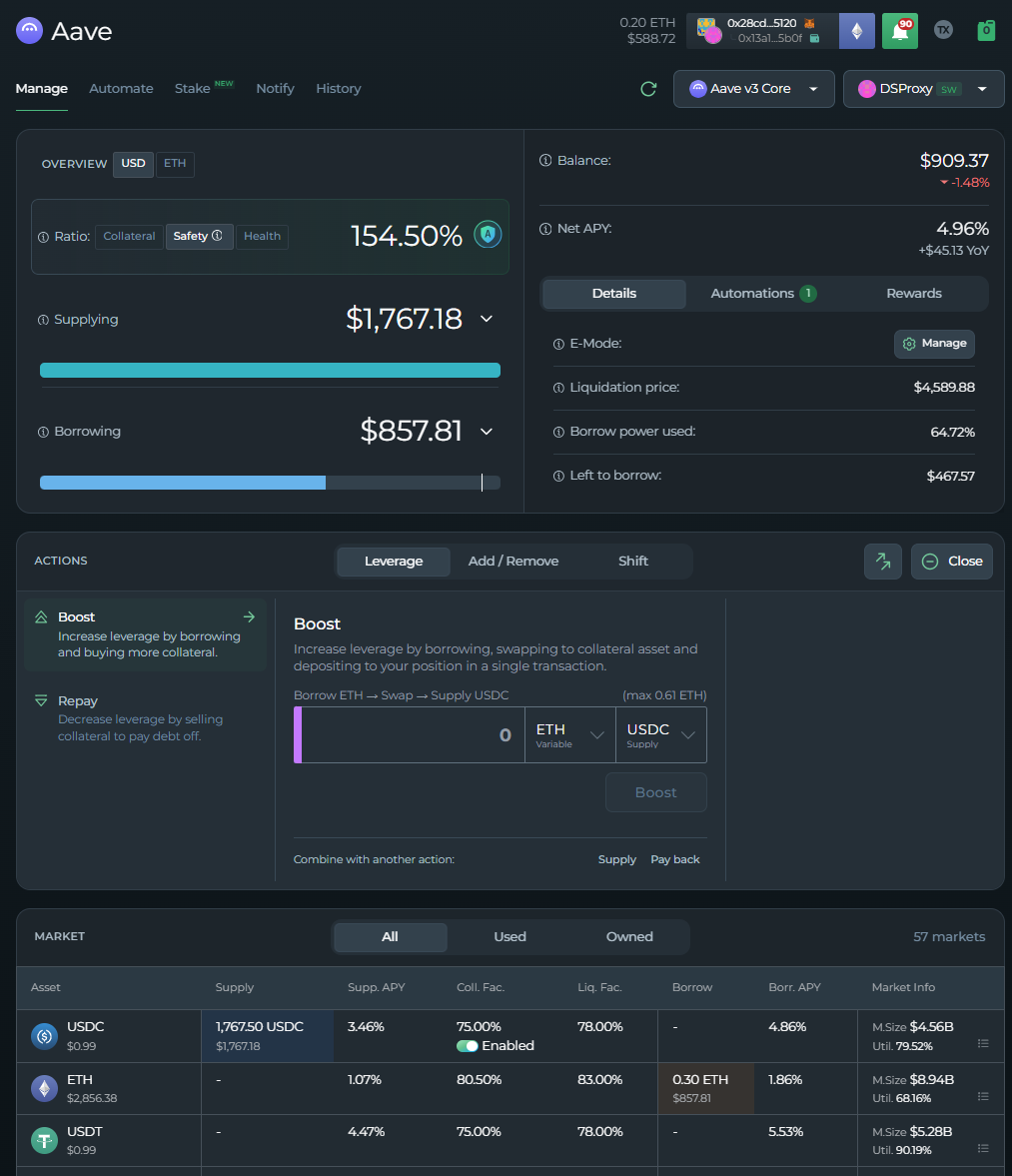
And compare it to DeFi Saver's:
Here, we encounter a significant visual difference - though it's not as intimidating as the difference might seem at first.
Let's first go over the differences:
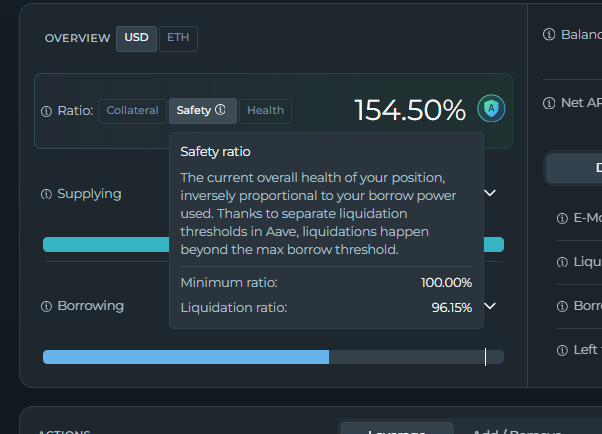
* The main risk metrics on DeFi Saver include the [Collateral, Safety and Health Ratio](https://help.defisaver.com/features/defi-saver-dashboard/health-safety-and-collateral-ratio), as opposed to the position's LTV on Summer.Fi. These are metrics that determine how far away from liquidation you are, and this liquidation threshold is visible once you hover over the risk metric:
* DeFi Saver defaults to expressing your position's supplied/debt values in dollar amounts, although you have the option of expressing them in the collateral asset as well. This is why you'll see that both Supplying and Borrowing is in USD.
* [Net APY](https://help.defisaver.com/features/defi-saver-dashboard/how-is-net-apy-calculated) shows the net value % that your position will have after a year - so a positive value means you'll be earning that much % in a year, while a negative means you'll be paying that much. \
\
This differs from the "Borrow Rate" on Summer - which subtracts the Supply APY from the Borrow APY to show how much you'll be paying to borrow - and in Summer's case, a positive value means you'll be losing that much (paying positive borrow APY), while a negative value means you'll be earning.
* The remaining metrics are similar to what is available on Summer
Another functional difference is how you select the tools that you'll be using to manage your position.
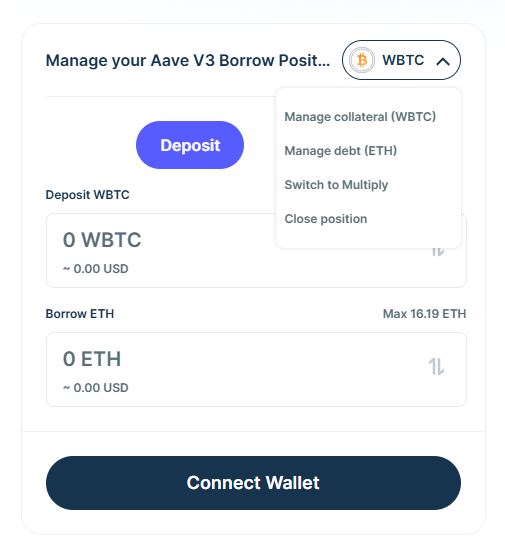
On Summer, you click on the dropdown and choose whether you'd like to:
* Manage your collateral
* Manage your debt
* Switch to Multiply
* Close your position
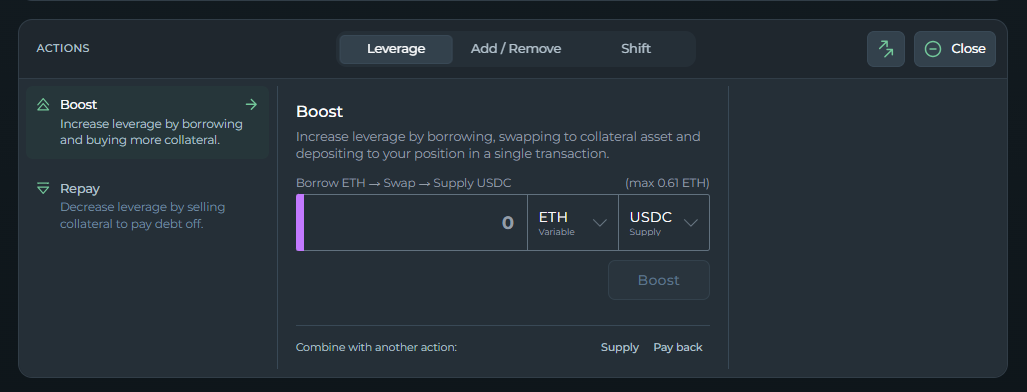
On DeFi Saver though - all of these tools (and more) is available right underneath the main dashboard, under the "ACTIONS" section:
We go into all of these features in detail in the "Feature Comparison" article, but let's also cover them quickly here:
* [Boost](https://help.defisaver.com/features/boost-and-repay) is a tool that works like "Multiply" on Summer. Essentially, it uses a flash loan to increase your leverage to the collateral asset by incurring more debt. In turn, it also makes your position riskier.
* [Repay ](https://help.defisaver.com/features/boost-and-repay)decreases your leverage by using a flash loan in order to free up your collateral and swap it to the debt asset - thus repaying the flash loan and also making your position safer.
On the "Add/Remove" tab, you'll have:
* Supply
* Withdraw
* Borrow
* Pay Back
As opposed to Summer, where the tools you can use depend on if you selected the collateral or debt asset - all of these tools are visible instantly on DeFi Saver. Additionally, you're able to chain these actions together in order to combine them into a single transaction.
Moving onto the "Shift" tab, we have:
* [Collateral Switch](https://help.defisaver.com/features/collateral-and-debt-switch) - This tool lets you switch your collateral asset to a different one
* [Debt Switch](https://help.defisaver.com/features/collateral-and-debt-switch) - This tool lets you switch your debt asset to a different one
* [Position Flip](https://help.defisaver.com/features/collateral-and-debt-switch/position-flip) - This tool "flips" your collateral and debt asset, where your collateral asset becomes debt, and the debt asset becomes collateral
* [Shifter](https://help.defisaver.com/features/loan-shifter) - This tool lets you move your position to a new protocol, just like the "Position Swap" tool on Summer:
Two more options you'll see in this section are:
* Migrate - This tool lets you move your position either from an EOA to a Safe Smart Wallet, or from one Smart Wallet to a different/new Safe Smart Wallet.
* [Close](https://help.defisaver.com/features/leveraged-create-and-close) - which works the same as on Summer
Finally, by scrolling down to the "Market" section, you'll be able to see all of the available collateral and debt assets within the Protocol you have selected - including the asset's Supply/Borrow APY, Collateral/Liquidation factor, and overall market info (such as left to borrow, supply cap, market size, etc...)
{% hint style="info" %}
On Summer.fi - Each position can only have one collateral and one debt asset, while on DeFi Saver, you're able to manage the position as if you were directly on the protocol.\
\
This means that, depending on the protocol, you can even have multiple collateral or debt assets in your position.
{% endhint %}
The next pages for us to look at and compare are the "Protection" and "Automate" pages:
Compare Automation pages:
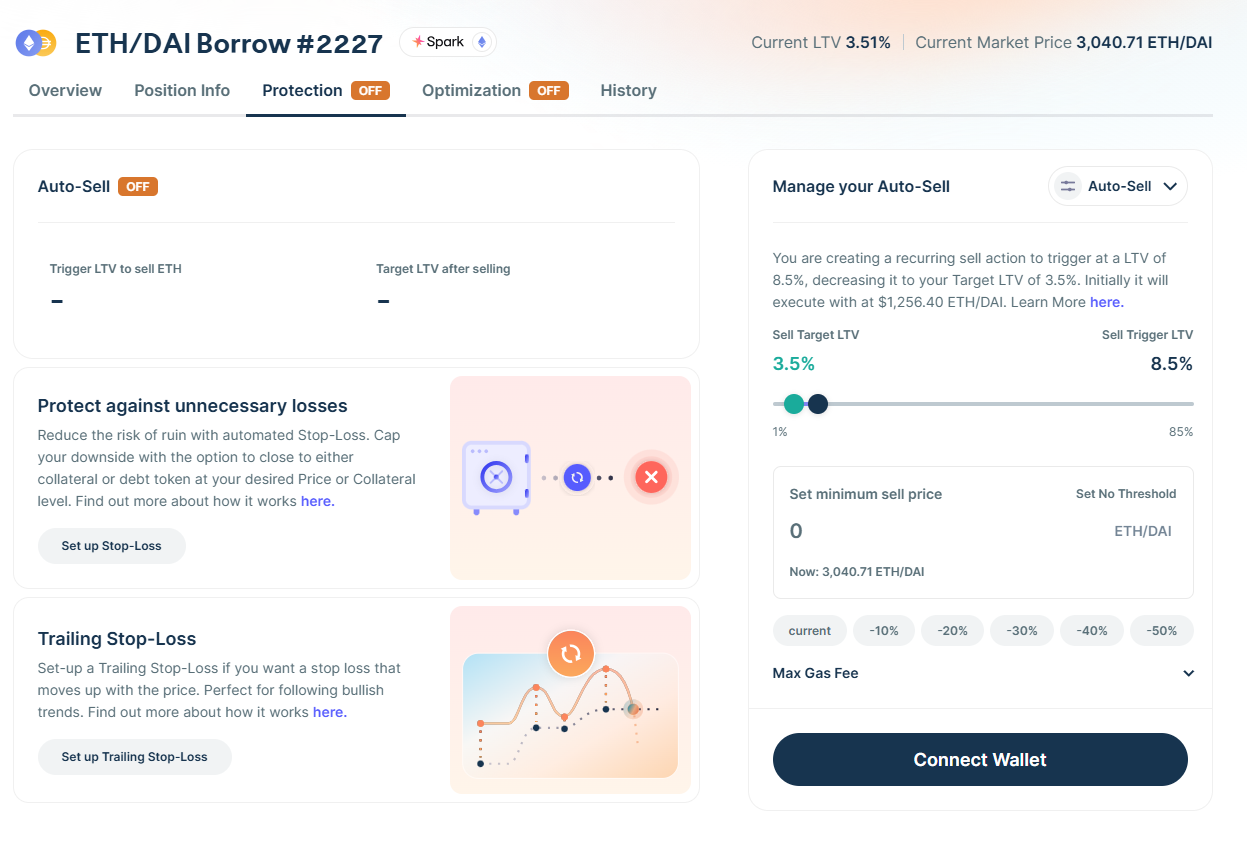
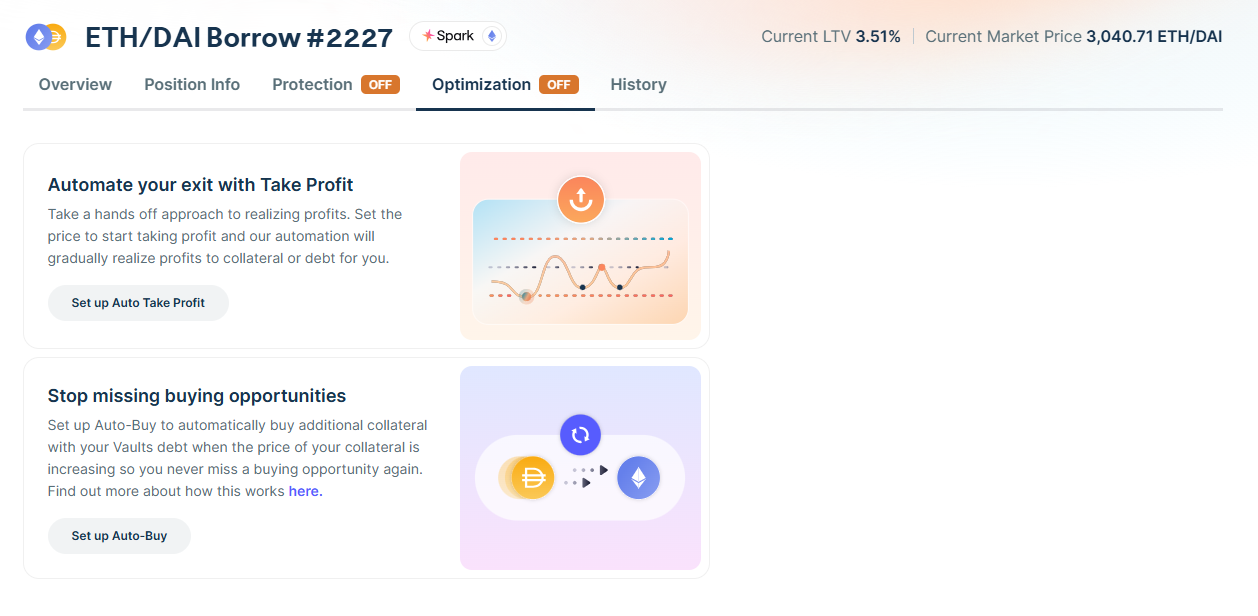
On Summer, the automation tools are under the "Protection" and "Optimization" pages, where risk-management automations are under Protection, while those that let you capitalize are under "Optimization":
* The Protection tab:
* The Optimization tab:
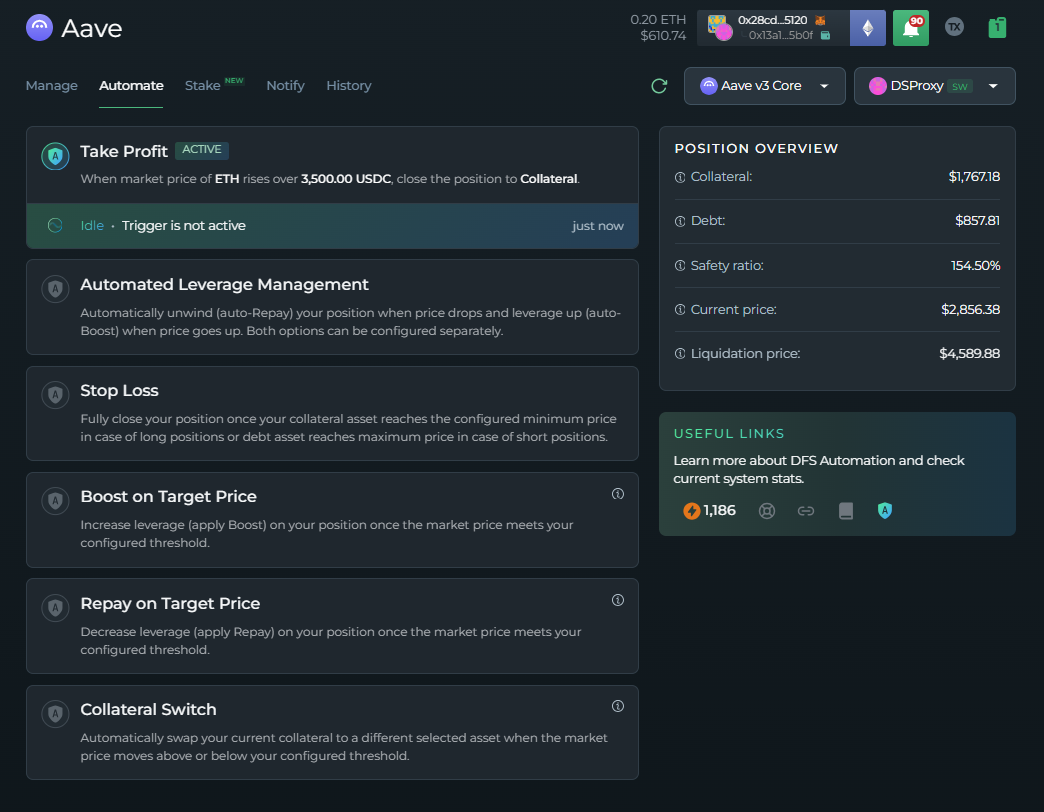
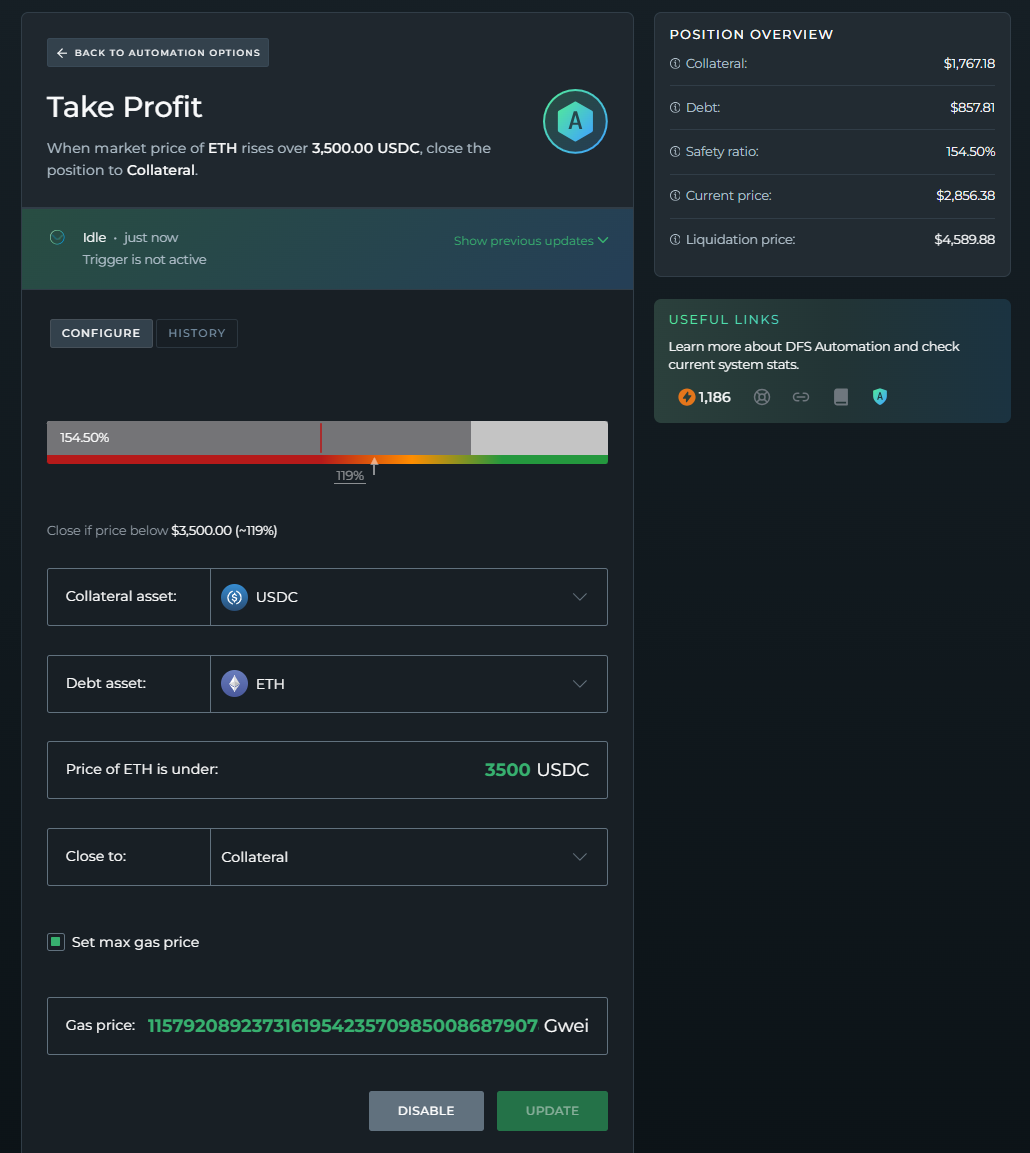
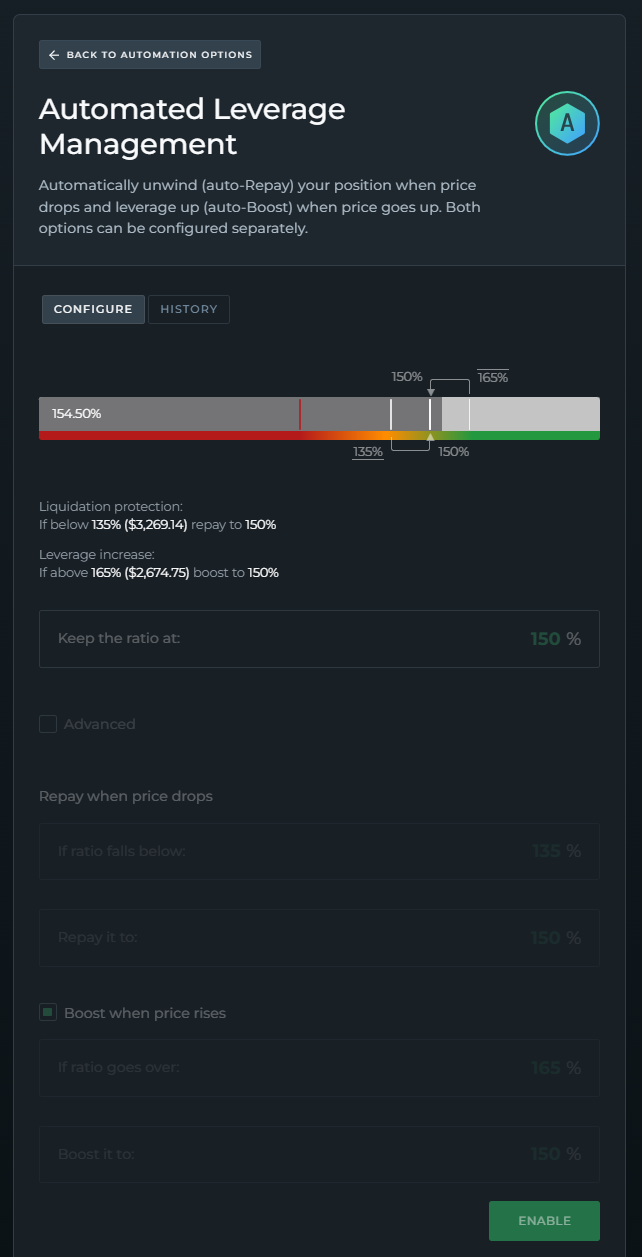
On DeFi Saver, all of the automation tools (regardless of if they're risk-management or profit taking) are under the "[Automate](https://help.defisaver.com/features/automation)" tab:
On Summer, you set up the automation by setting the LTV at which it will trigger (or the target price), while on DeFi Saver, the metric you're setting depends on the automation.
For example, if you're setting up Take Profit/Stop Loss, you'll trigger these tools by inputting the collateral's price:
While on the other hand - for Automated Leverage Management - you're inputting the Safety Ratio that the automation will aim to maintain:
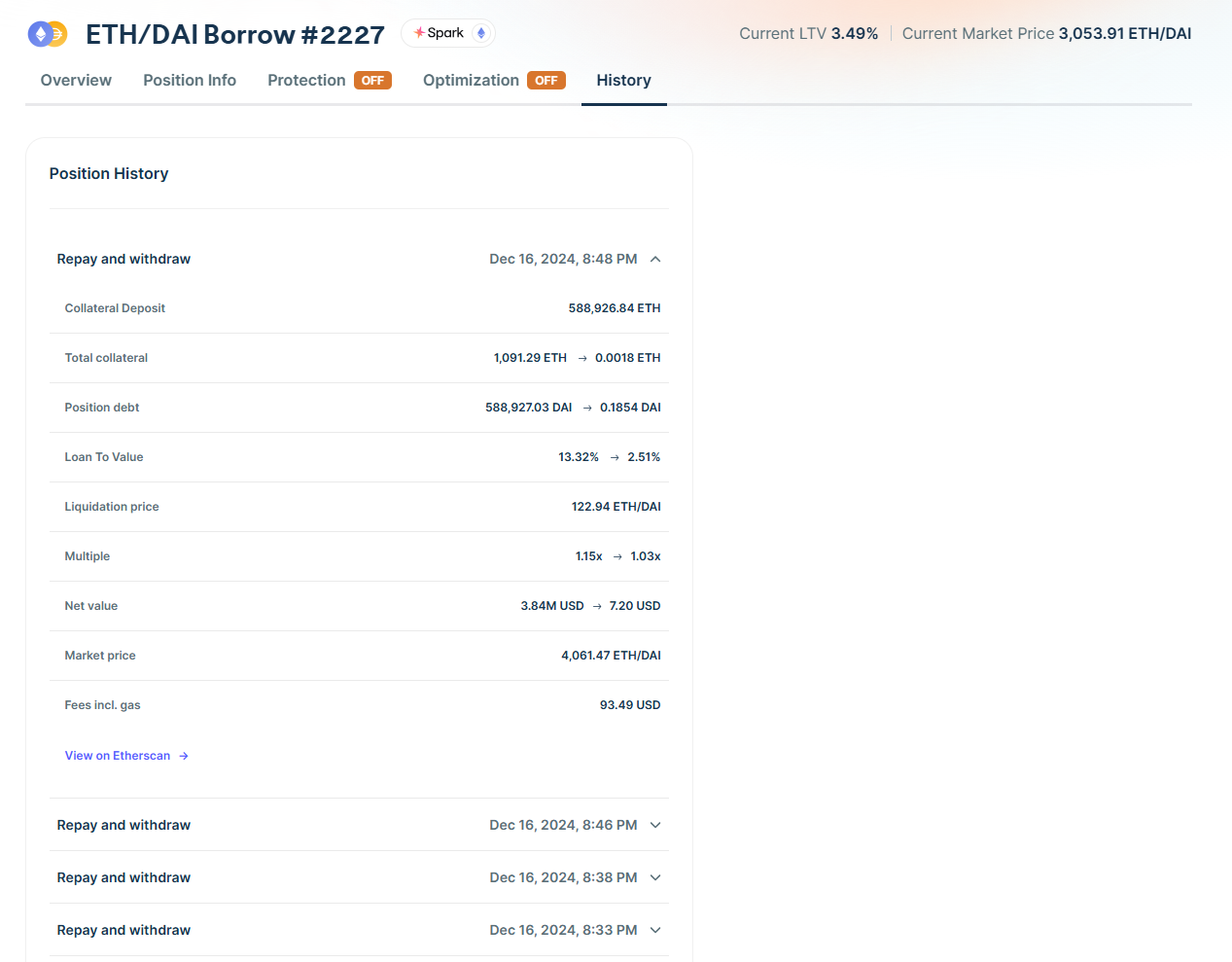
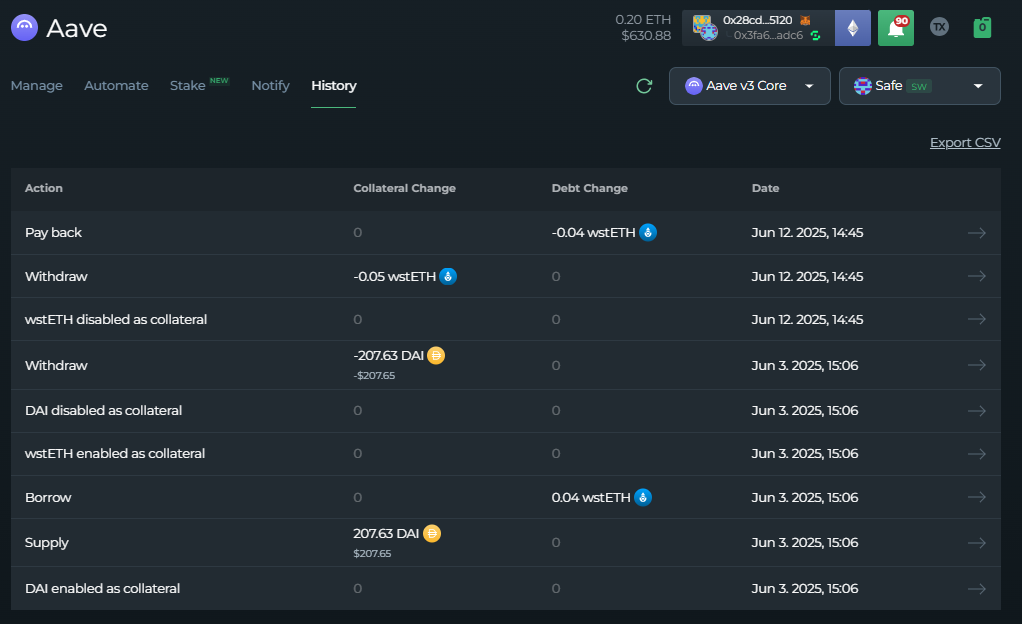
Both apps let you view the History of your position:
Compare History pages:
Both History pages are very similar, with some slight differences. Let's look at Summer's first:
On Summer, clicking on any of the actions will expand the window and provide you a plethora of information, along with a link to the transaction on Etherscan.
DeFi Saver on the other hand provides you all the information without the need to "expand" it:
Simply clicking on any of the actions will take you to the Etherscan link for that specific transaction. \
\
Additionally - clicking the "Export CSV" button will provide you with a CSV file containing your position's history.
{% hint style="info" %}
*Depending on the protocol, DeFi Saver might also offer Staking options within the protocol, such as Aave Staking or Fluid lending:*
\
\
*These pages are accessible through the main dashboard navigation bar.*
{% endhint %}
We've covered the dashboard differences when you have an existing position, but let's now also compare how Summer and DeFi Saver differ in how positions are created:
Compare how positions are opened:
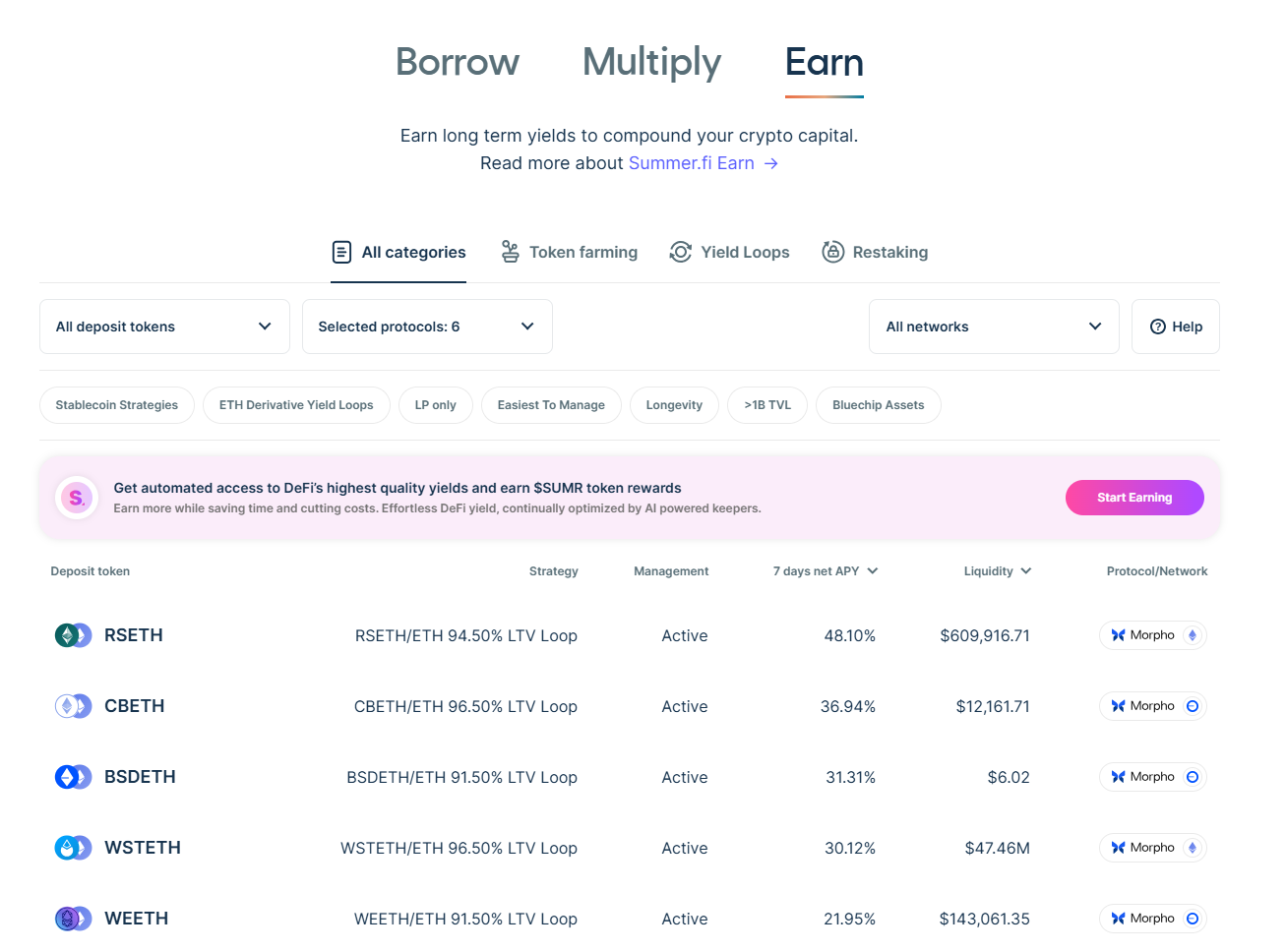
On Summer, there are three distinct features that let you open a position. Those are:
* Borrow - Letting you set up a regular borrow position
* Multiply - On DeFi Saver, this is called "Leveraging", and they both let you loop your collateral to increase exposure to it
* Earn - Predefined looping strategies that provide users with increased Net APY through looping
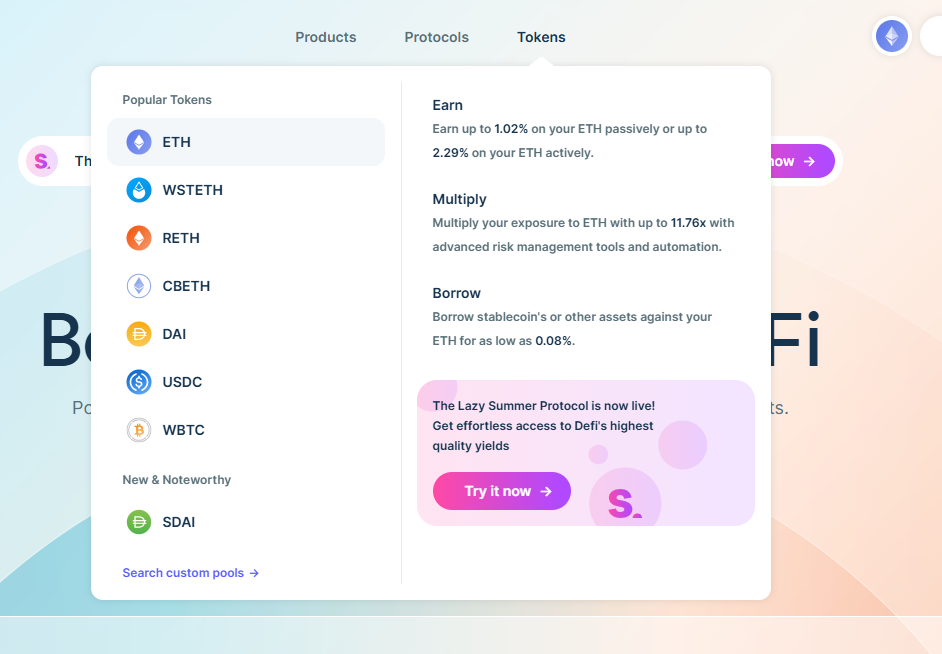
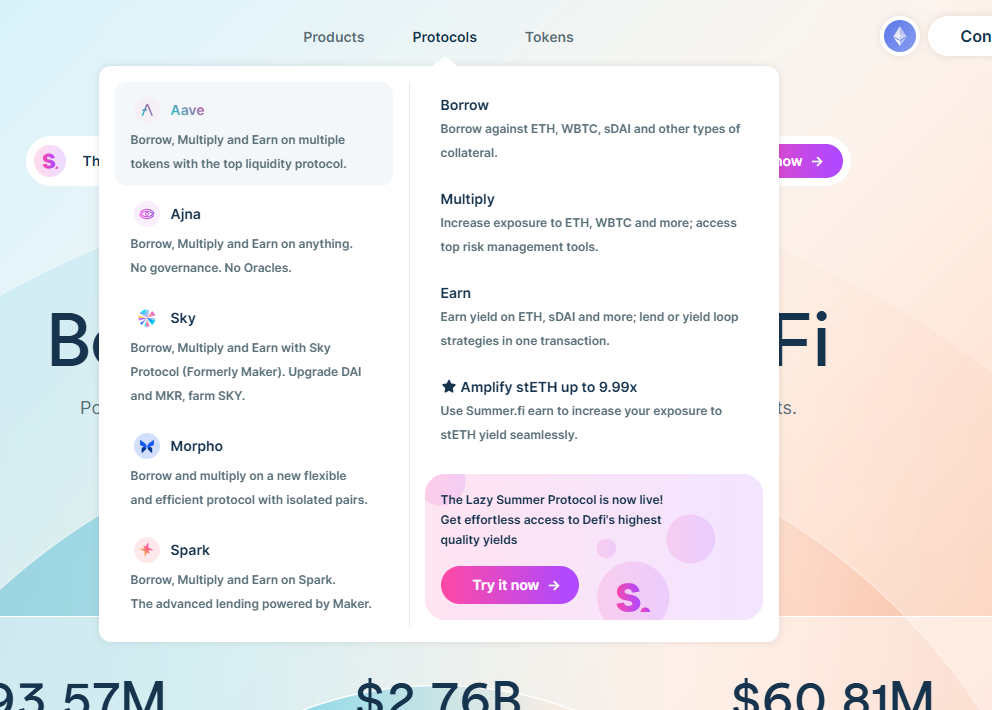
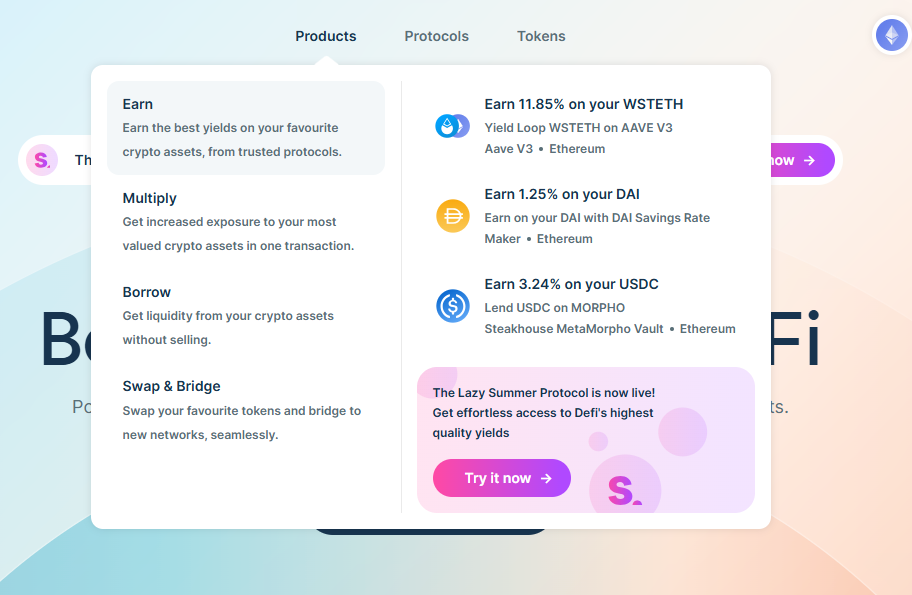
These three tools are available from the home page - but users are also able to select them when selecting "Products", "Protocols", and "Tokens" from the header of Summer.Fi:
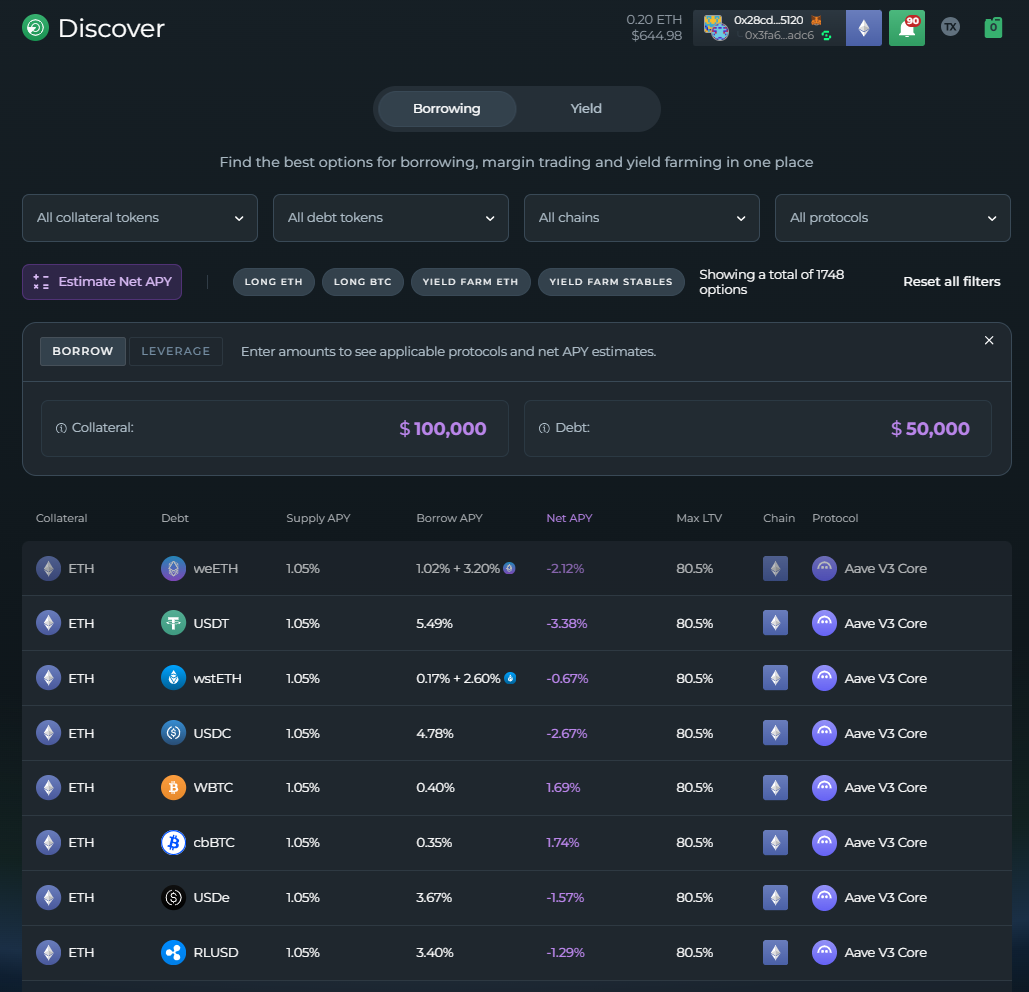
On DeFi Saver, there are two ways to start setting up your position. The first option is very similar to Summer's UI, which is our "[Discover](https://help.defisaver.com/features/discover)" page:
The idea is similar to what you had on Summer - You input the details of your position (collateral, debt, protocol, etc...) and are provided with a list of collateral and debt combinations, along with the protocol/chain they're on.
On DeFi Saver, you can also input the dollar value of your collateral and the amount of debt you'd like to incur - which will provide you with relevant options based on the LTV of what you've input.
{% hint style="info" %}
*You can also click on "Leverage" (Summer's Multiply) to input the dollar value of your collateral, and how many times you'd like to loop it.*\
\
*This will provide you with a list of positions that can accommodate your filter, and you can sort them by Net APY.*
{% endhint %}
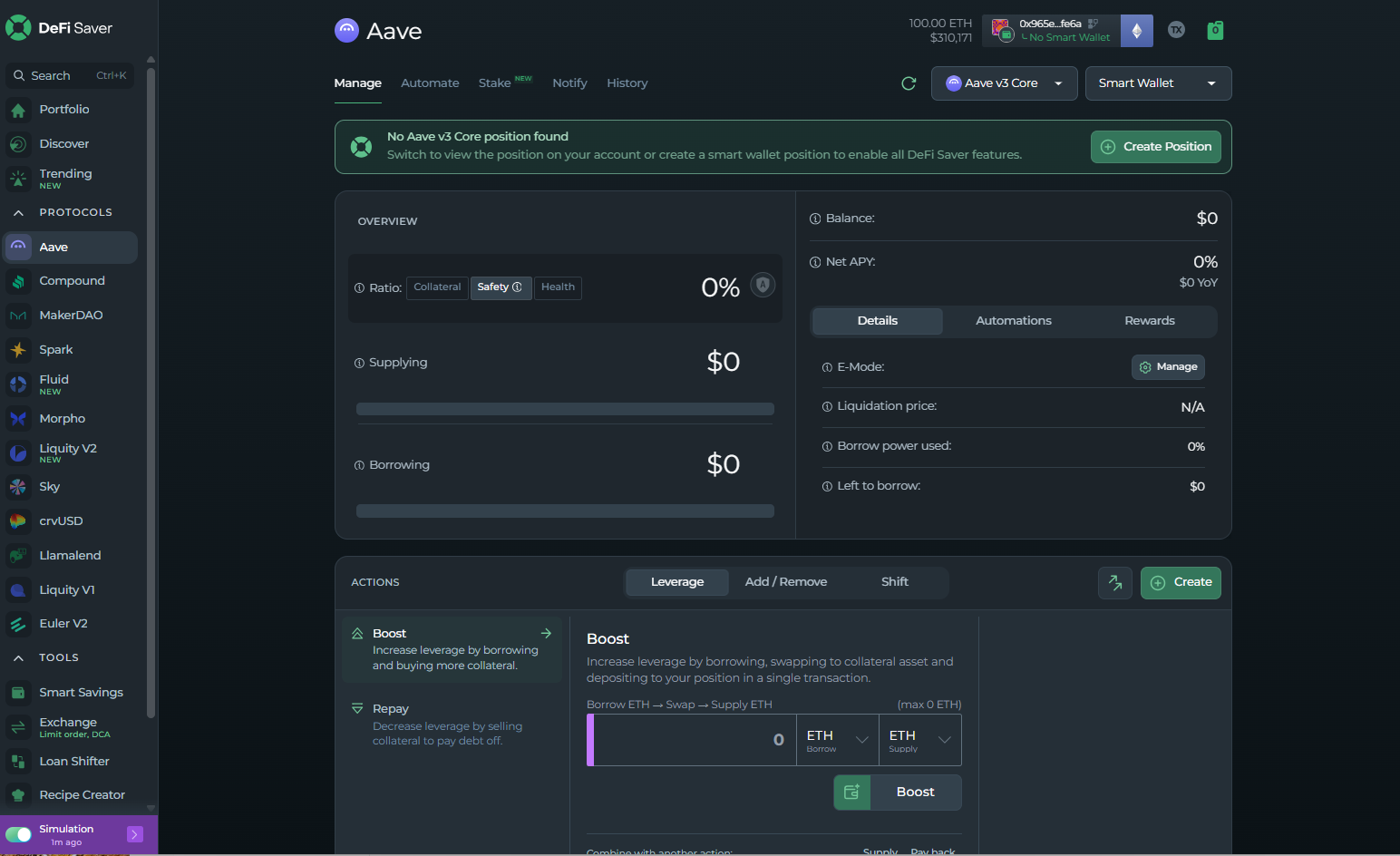
Alternatively, you can also open a position by visiting the dashboard of the protocol you'd like to interact with (by clicking on it from the left-hand sidebar). For example, Aave:
You'll notice a prompt at the top giving you the option to create a position, so you can either click on "Create Position" there - or on the "Create" button in the "ACTIONS" section.
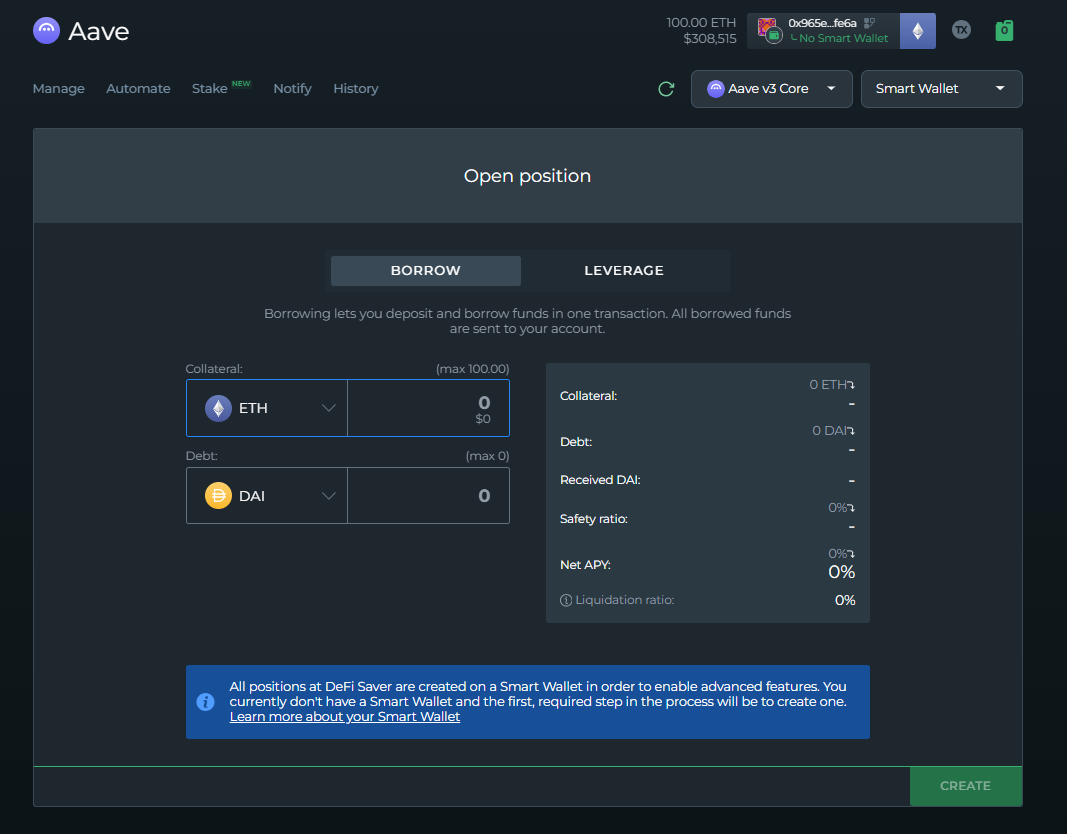
Whichever option you choose (including selecting a specific setup from the "Discover" page), you'll be taken to the following page:
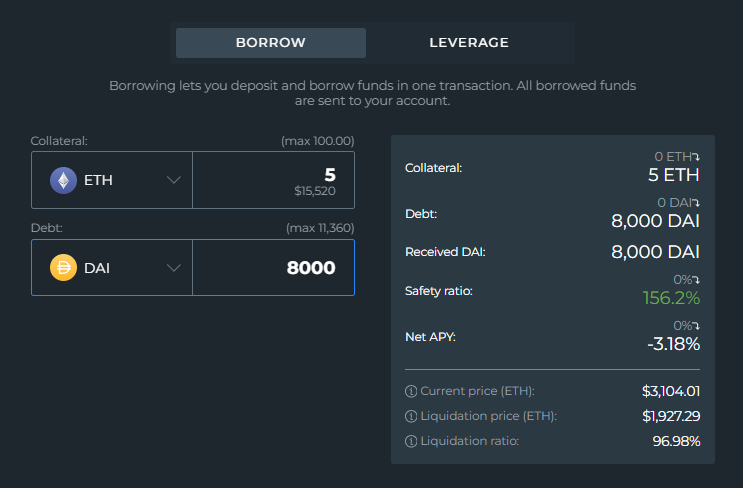
The first thing to mention is the "Borrow" and "Leverage" tabs. On the "Borrow" tab shown above, you can choose your collateral asset and input the amount, as well as choosing the debt asset and inputting how much you'd like to borrow.
As you're inputting values, the panel on the right will update to give you a preview of your position prior to opening it:
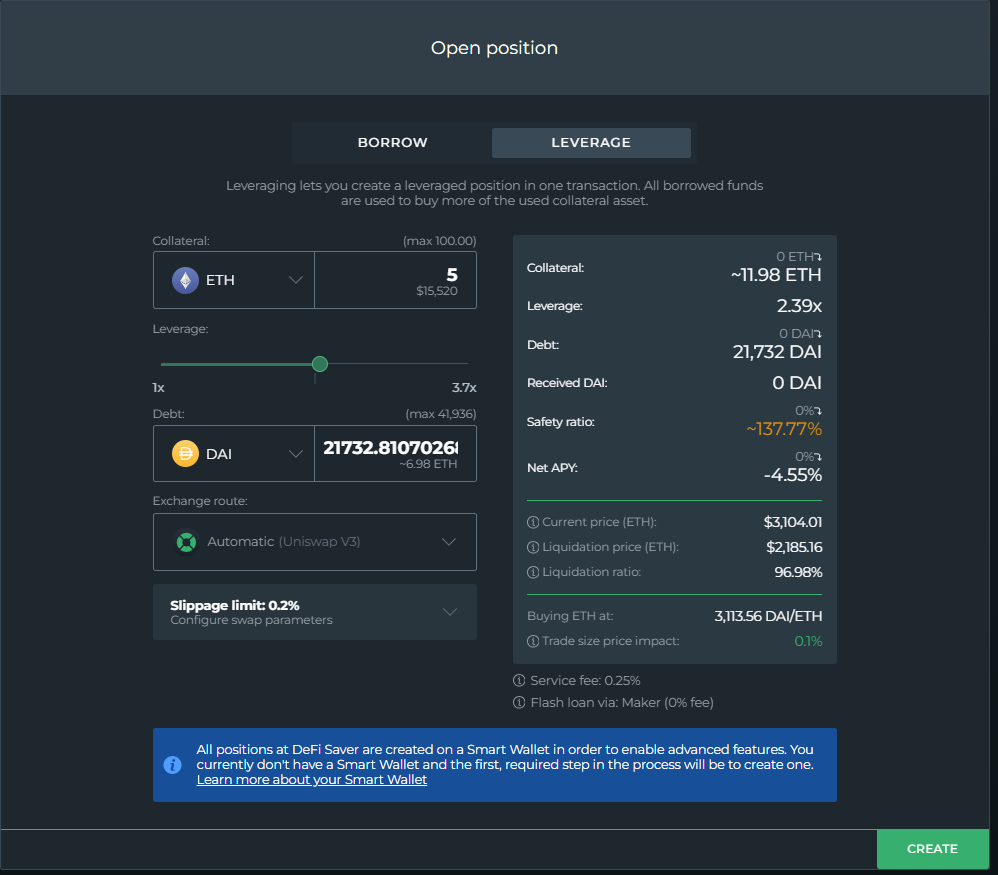
To leverage (or Multiply/Earn on Summer) - click on the "Leverage" tab:
The setup is similar as with regular borrowing - but with the option of a leverage/loop amount slider, as well as the option to set your slippage limit. As with opening a borrow position, the panel on the right gives you all the relevant metrics ahead of time.
Once you're satisfied with the position's setup, click "Create"
This wraps up our comparison of DeFi Saver and Summer.fi's dashboard. We'd highly recommend having a look at the other comparison articles.
***
## Related Articles:
* [Feature Comparison](https://help.defisaver.com/summer.fi/feature-comparison)
* [Fee Comparison](https://help.defisaver.com/summer.fi/fee-comparison)
* [Unsupported Features](https://help.defisaver.com/summer.fi/unsupported-features)
* [DeFI Saver Exclusive Features](https://help.defisaver.com/summer.fi/defi-saver-exclusive-features)